🌟 Join us on Discord! Chat, share, and get inspired — become part of the ArtGeneration.co community
Signing in and first steps
Without signing in you can only browse: the gallery is open, but creating, searching and saving are not. Signing in takes under a minute and does not ask you to invent a password: the account has no password at all.
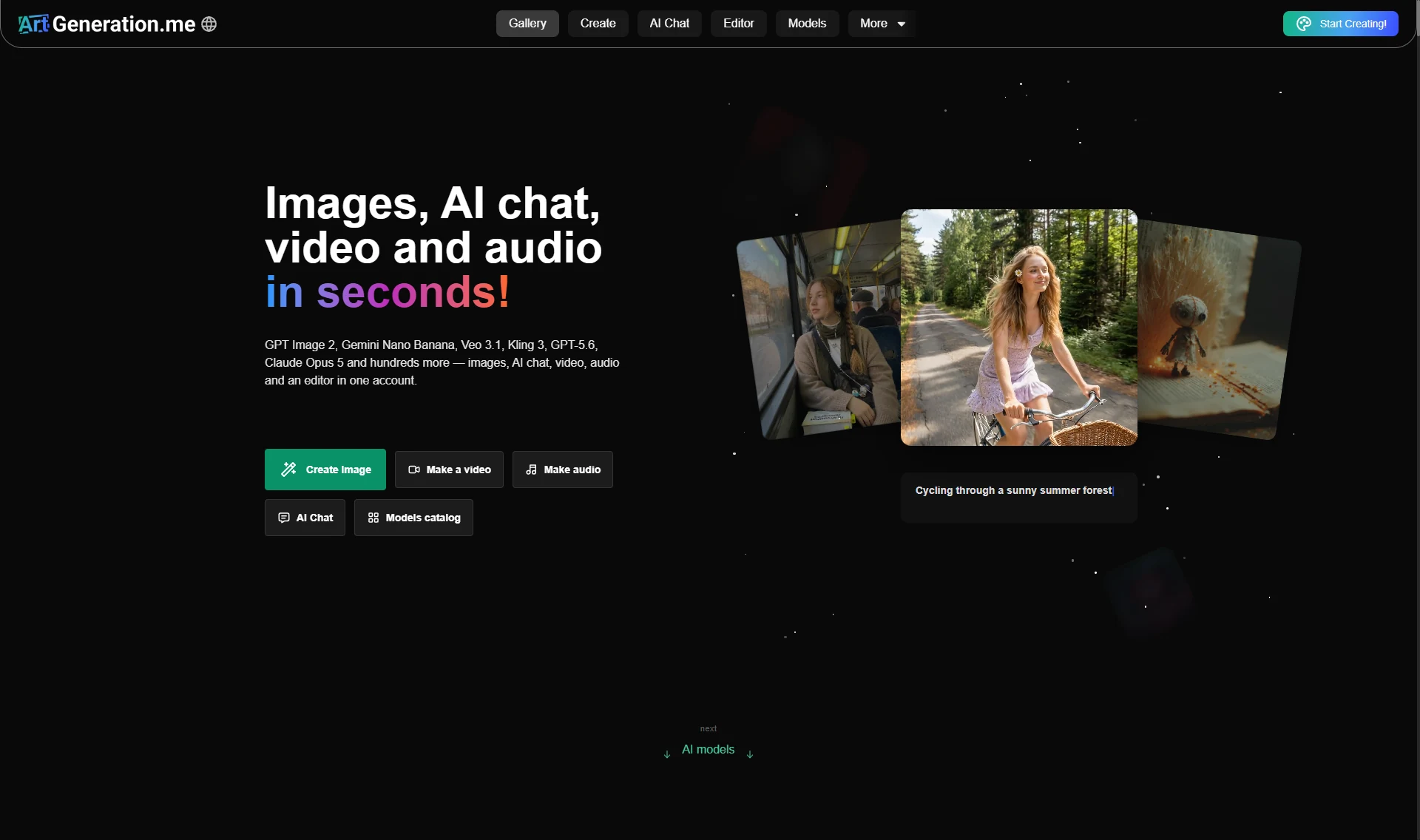
There is no separate registration in the service: your first sign-in creates the account. The sign-in window opens with the "Start Creating!" button in the top right corner.
You don't have to invent a name — the service assigns one itself: an adjective plus a noun, in the language of the interface. It happens on any first sign-in, whether by email code or through a social network. The name can be changed later in profile settings on a paid plan — see Profile and settings.
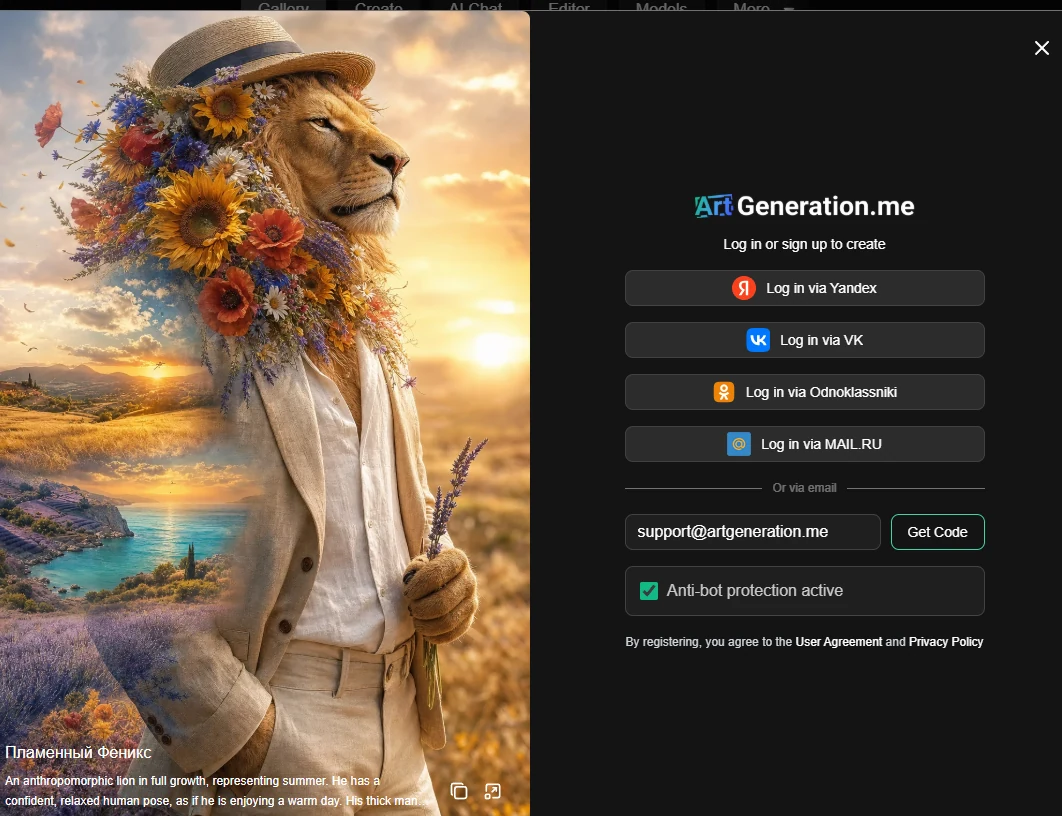
The picture on the left of that window is not decoration but a real user's work: with the author's name, the full prompt and two buttons — copy the prompt and open the work to look at its generation settings. These covers are picked by likes from the community's works, so yours may well end up there.
Signing in with a social network
The upper part of the window has social buttons: Yandex, VK, Odnoklassniki and MAIL.RU. This is the fastest route: after coming back from the network the account is ready, and the name and avatar are pulled in automatically.
Social networks open in a popup window. If you have a popup blocker or an aggressive ad blocker enabled, the sign-in simply won't start — the window never opens, and it looks like "the button doesn't work". That is the first thing to check.
The set of buttons comes from the service settings and may change over time — go by what you see on screen rather than by a list in the text.
If the network didn't share your email
Sometimes after signing in through a network a window with a single field appears, asking for your email. You can close it with the cross, the service does not insist. But it is better not to, and here is why.
Without a linked email:
- you cannot unlink your only sign-in method — if the network one day stops letting you in, the account stays out of reach;
- the email with the link to your works archive will not arrive;
- neither will the account deletion confirmation.
The email here is not for mailings — those are unsubscribed separately, in settings.
Signing in with a code by email
Enter your email address
The "Enter email" field and the "Get Code" button are in the lower part of the window, below the social buttons and the "Or via email" divider. Under them you can see "Anti-bot protection active" with a green tick.
The anti-bot check is mandatory and runs by itself. There is nothing to solve, but until it finishes the "Get Code" button is inactive. If it stays grey, that is exactly why.
Wait for the email with the code
The code is short — there are exactly four cells for it — and it lives for a limited time. If there is no email, check the spam folder first.
Enter the code
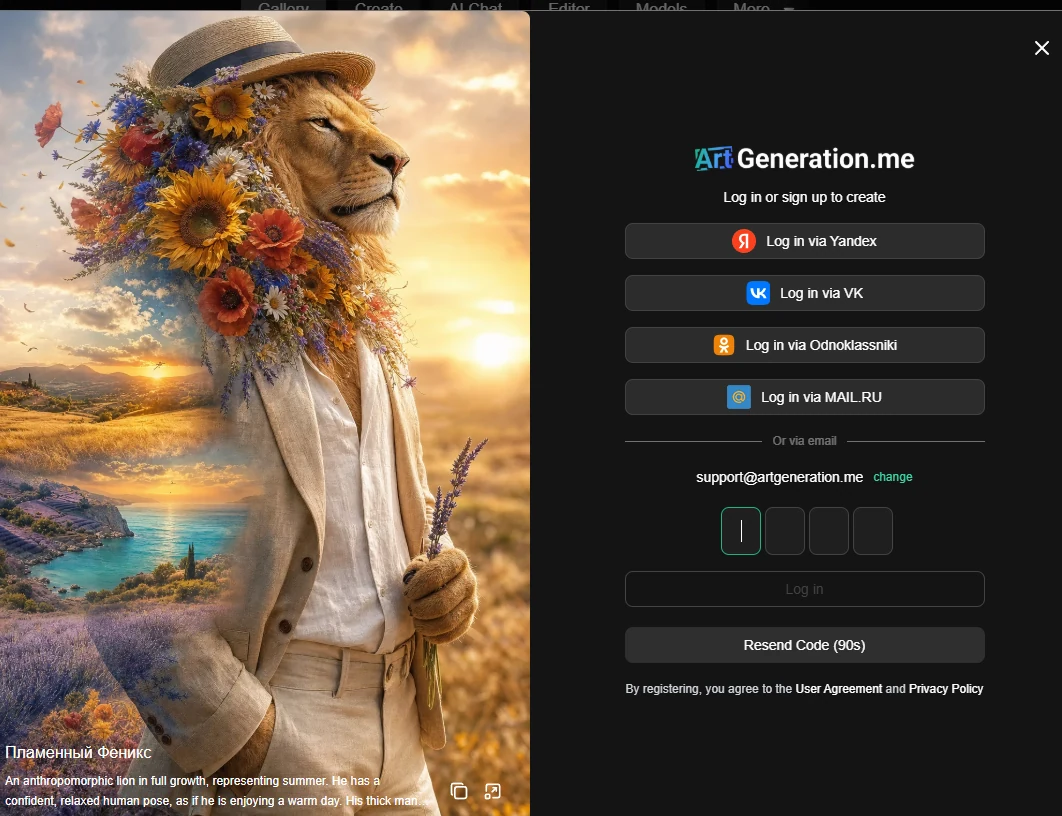
The field takes digits only and is marked as a one-time code, so your phone may fill it in for you. Verification starts automatically as soon as the last cell is filled — pressing the button is not required. On a wrong code the field clears and the cursor returns to the start.
Next to the address there is a "change" link — if you mistyped the email, you don't have to close the window and start over.
Don't look for a second email. The resend button behaves differently depending on timing:
- pressed early, while the previous code is still alive — no new email is sent at all, the first code remains valid. The screen still says the code has been sent;
- pressed after the countdown reaches zero — the old code is killed and a new email arrives.
Hence the most practical advice in this section: don't look for a second email — open the first one. And the other way round: once a new email really arrives, the old code stops working.
If you request a code bypassing the button, the service answers literally: "The code was sent recently. Please wait a moment and try again".
What can go wrong
| Message | What to do |
|---|---|
| "Invalid code, try again" | type the code again, more carefully |
| "The code has expired, request a new one" | request a new code |
| "Too many code attempts. Request a new code" | same thing: you need a new code |
| "Too many attempts, try later" | wait; only time helps |
The second and third differ in cause — in one case time ran out, in the other the input attempts did — but the cure is the same: a new code. Rate limiting works both by address and by device.
Which email addresses will not work
On the first sign-in from a new address the service checks the mailbox itself and may refuse. The wordings are literal:
| Kind of address | What the service answers |
|---|---|
| temporary or disposable mail | "It looks like your email belongs to a temporary or unwanted mail service. To continue registration, please choose another email address" |
an address with a plus like name+something@… | "Addresses with '+' are not supported. Please use another email" |
| a private relay or mail-masking service | "Email aliases, private relay addresses and mail masking services are not supported. Please use your main email" |
The check applies to registration, not sign-in. If an account with that address already exists, signing in works as usual. So "it worked before and now it doesn't" is almost always about a different address.
The service normalises the address, so different spellings of the same mailbox are one and the same account. Creating "a second account on the same mailbox but written slightly differently" will not work: the service recognises it and lets you into the old one.
Don't sign up with a throwaway mailbox "just to try". There are no passwords in the service, and if the mailbox disappears there is nothing left to recover access with.
I followed a link from an email — what was that
A link from an email activates the account and signs you in by itself: no form appears, the key is removed from the address, and you end up on the home page already signed in.
There are two outcomes. If a gift is attached to the link, a welcome window opens on top: it names the granted subscription, lists what it includes, has a button that opens the daily coins window, and a link to the community. If there was no gift — just a sign-in, no window.
The most important use of such a link is saving your account. The email "your account will be deleted soon" for inactivity contains exactly this link: one click removes the deletion mark. More in Profile and settings.
If a gift window opened after the link — press the daily coins button in it right away, otherwise they are easy to forget. See Coins and limits.
Windows behind links from emails
Links from emails — address confirmation, the welcome link, deletion confirmation — lead to a large window with the result. There are three wordings:
| Window | What happened | What to do |
|---|---|---|
| "The link contains an error" | the link broke while being copied, or the email was forwarded in pieces | open the whole email and click the link instead of copying it |
| "The link has expired" | too much time has passed | request the email again |
| "The link has already been used" | it has been followed already | nothing is needed: the action is already done |
The third window is usually not an error but a confirmation. "Already used" looks the scariest and means the most harmless thing: the address was confirmed or the subscription activated on the first click. Check the state in your profile — most likely it is all done.
The welcome gift
On your very first sign-in you get a gift: three days of PRO and a stock of non-expiring coins. Three days of PRO means more available models, more pictures per run and private mode. What exactly it includes is written in the welcome window — and that window is shown only once, on the first sign-in.
The gift subscription will not turn into a charge. It does not renew automatically: no card is linked, there is nothing to charge. When the days run out you simply return to the free plan, and the non-expiring coins stay — they have no expiry.
The days run on the calendar: they tick away even if you don't come back. "Saving it for later" does not work — try the expensive models and private mode straight away.
The first things to do after signing in
- Claim your daily coins. The header has a chest button for that: an open chest means the coins have not been claimed yet. Until you press it, there is nothing to spend. Details: Coins and limits.
- Link a second sign-in method. There are no passwords, so the only key to the account is access to your mailbox or to the network. A linked email plus one network, and losing either stops being a problem. That is in profile settings, the "Quick login" tab.
- Make your first picture — Generator.
- Check your time zone in settings if it was not picked up automatically.
The set of networks on sign-in and in settings is different. Some let you sign in but cannot be linked; others are only available for linking to an existing account. So "this network wasn't on the sign-in screen" is not an error.
Your first picture in four steps
The shortest route. Nothing is configured here on purpose: the goal is to see a result, not to master everything at once.
Open the generator
The "Create" button in the header. On the left you get your feed of works, in the centre an empty canvas with the prompt field, on the right the settings. Only the prompt field needs touching.
If you have only just signed in, claim your daily coins first: an open chest in the header means they have not been claimed. With a zero balance the create button will not fire. See Coins and limits.
Keep the model that is already selected
For a first picture that is enough — a model is pre-selected. The price per generation is shown next to the create button and changes with the model and the size.
The coloured dot to the left of the model name shows how busy it is right now: green — free, yellow — moderate, red — the wait will be longer. A red dot is a reason to take a neighbouring model, not a reason for patience.
Write a prompt
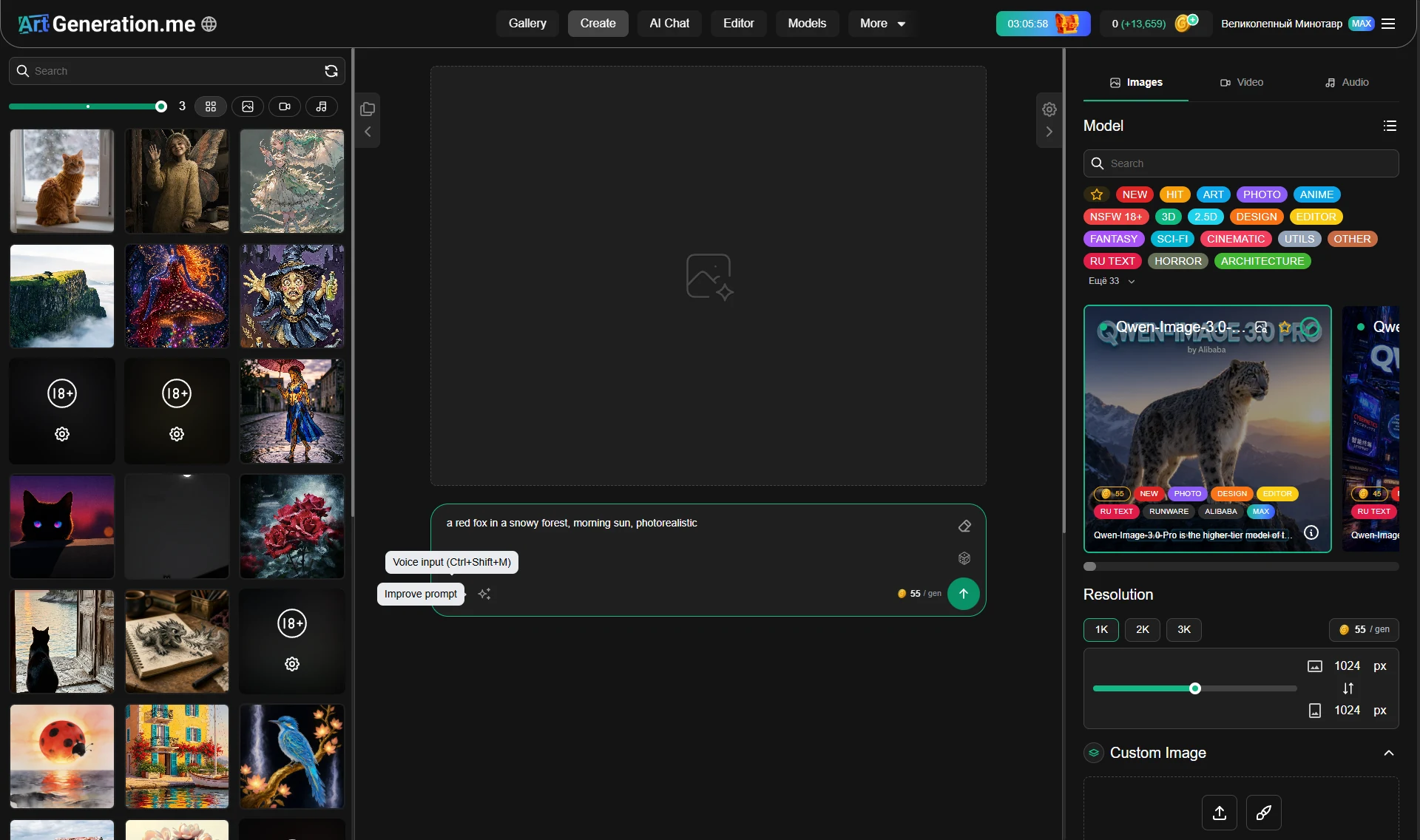
You can write in Russian or English — the vast majority of models translate the prompt themselves. There is no need to start with a long description: a short phrase gives a clear result to build on.
Example: "A ginger cat asleep on a windowsill, morning sun, soft shadows".
The dice next to the field inserts a genuine popular prompt written by other users, not an invention. Press it a few times — it is the fastest way to learn what words people actually use with this model.
Press "Create" and wait
Or Ctrl + Enter — the shortcut works across the whole page, not only in the prompt field. The finished work appears on the canvas and in the feed on the left.
You don't have to download it: the work is already saved. It sits in your works and in today's folder, and goes into the public feed unless private mode was on. See Your works.
If it did not work out, the coins come back, and the reason is written in the notification. All the causes are in When something doesn't work.
There is plenty to do with a finished work right away: download it or copy the link, upscale it, animate it into video, or discuss it with the AI in chat. All those buttons sit right above the result — each one is covered in Generator.
On the free plan downloading is available in one format only — WebP. PNG and JPG open up on paid plans, so there is no point hunting for them in the menu on free. More in Your works.
The interesting part starts after that: custom images, masks, styles, video and sound. All of it is in Generator.
Where to go next
- I want to start creating — Generator.
- I don't understand what coins are spent on — Coins and limits.
- Sign-in is not working — When something doesn't work.
