🌟 Join us on Discord! Chat, share, and get inspired — become part of the ArtGeneration.co community
Profile and settings
User menu
The button on the right of the header opens a menu of eight items: Personal, Settings, Payments, Bonuses, Partnership, Community, Wiki, Log Out.
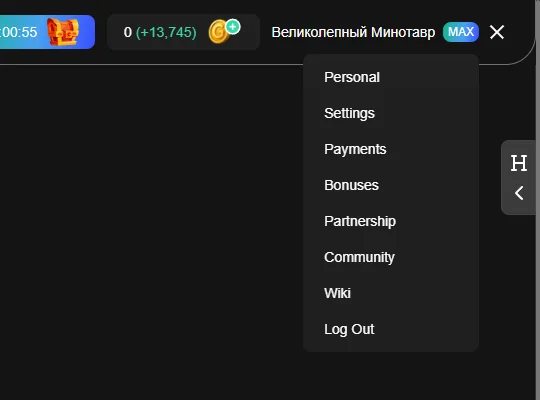
The guide is called "Wiki" in the menu — that is the word to look for.
The "More" menu in the header
Next to the main sections there is a More dropdown containing Logos, About and Wiki.
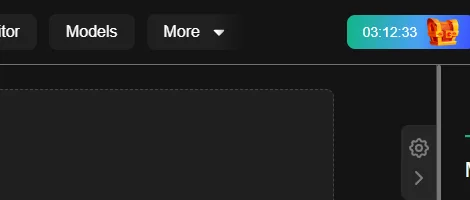
The logo generator lives here, not next to the ordinary generator — hence the question "where are the logos". More in Editor and logos.
Interface language and the phone layout
The language is switched with the globe to the left of the logo. It is there in every section except the AI chat: the chat has its own header.
That window holds two lists, not one, and they get mixed up constantly:
- "Localisation" — the interface language. Its hint says exactly that: localisation defines the language of the site's interface;
- "Server" — the regional infrastructure. Its hint explains the choice through payment: pick "Global" for international payment, "RU" for paying from Russia.
Changing the language switches the interface in place, while changing the server opens a different site in a new tab — the current one stays as it was.
Hence the classic "I pressed Save, nothing changed, so it's broken". It isn't: a second tab simply opened, and a popup blocker may well have swallowed it.
The service can also suggest the switch itself: if it decides you are from another country, a prompt appears with "go" and "cancel" buttons. Your choice is remembered and it will not come back.
On a narrow screen things work differently. The header shrinks and the sections move into a side menu — the button at the top left.
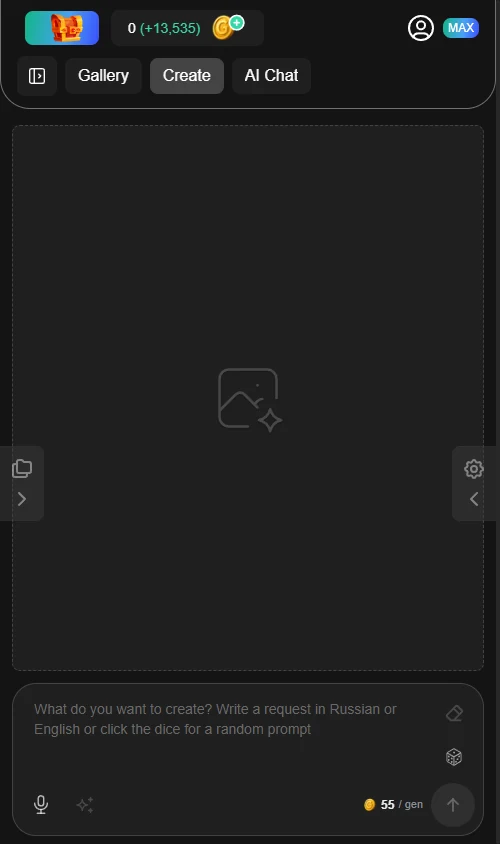
That menu holds every section at once, including the ones hidden under "More" on a wide screen: Logos, About, Wiki. And at the very bottom, below the rule, sits the language switcher with the current code.
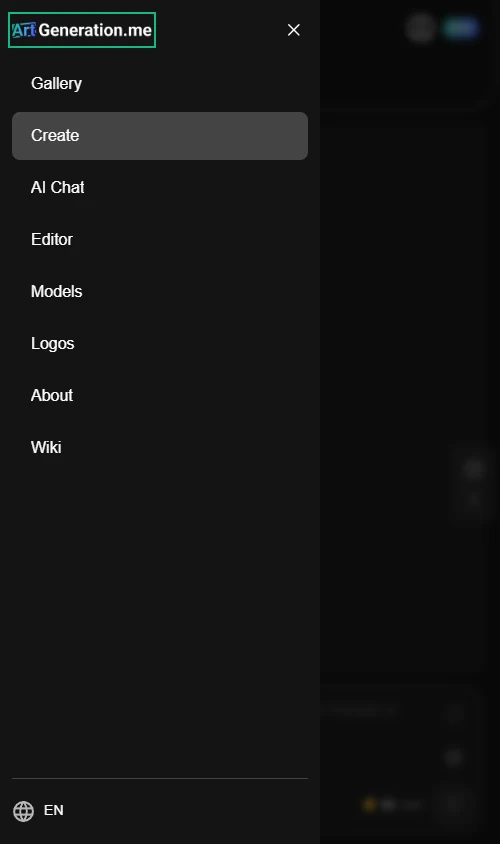
This is the answer to "I'm in the chat and there is no globe". From the side menu the language switches from anywhere, including the chat.
Settings is a window with three tabs
Profile · Quick login · Emails.
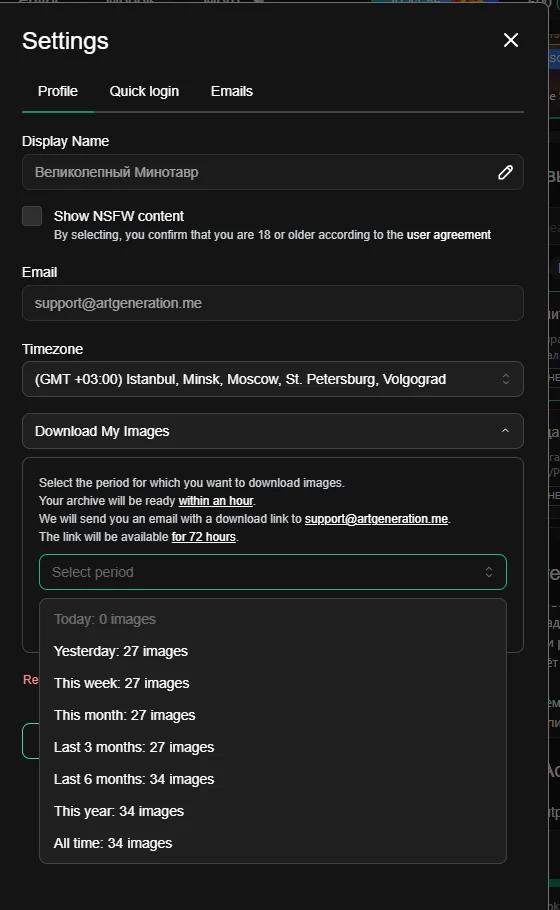
Top to bottom on the Profile tab: the display name with a pencil, the checkbox for showing adult content, a locked email field, the time zone, a collapsed block for downloading all your works, and a red account deletion link.
Everything on this tab is saved by the single button at the bottom. Flip the checkbox, pick a time zone and close the window — nothing was saved.
The picture on the left of the window is not decoration: it changes every time, comes from the gallery, and carries an author, a copy-prompt button, a fullscreen view and a cover rating. So the settings window doubles as someone else's work you can take apart.
Display name
At registration the name is assigned automatically — an adjective plus a noun. Your own: from 3 to 50 characters, any characters, emoji and ASCII art; an empty name is not accepted. The field is locked by default: the pencil toggles edit mode, it does not save. Press the pencil → the field unlocks (the icon turns into a "pause") → you type → you save with the common button.
Changing the name is available on paid plans only. On a free plan the pencil is drawn with a gradient and opens the plans window instead of unlocking the field.
Shown, but cannot be changed in settings — the field is locked.
Time zone
If you never picked one, your computer's zone is used, not the one you had at registration.
The time zone does not affect daily generations. They refresh at midnight Moscow time for everyone, wherever you live — see Coins and limits.
What it really affects: the period boundaries when building an archive and the display of dates. If the zone is wrong, an archive "for today" will cover the wrong day.
Showing adult content
The checkbox is called "Show NSFW content", and the line under it reads "By selecting, you confirm that you are 18 or older according to the user agreement" — with a link to the agreement itself.
Works on paid plans only: on a free plan the toggle does not fire and the plans window opens instead.
And something not mentioned anywhere: when the subscription ends, the setting resets itself — after renewing you will have to switch it back on.
The same checkbox decides whether such works can be downloaded — see Your works.
Quick login
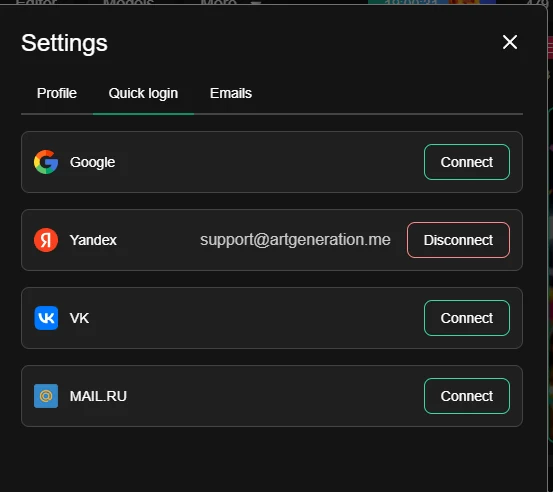
A list of sign-in methods. A connected one shows the email the link came with and a red "Disconnect" button; the others show a green "Connect".
The email in a row answers "which address am I here under", and it may differ between networks — that is normal and it is not two accounts.
The list here is wider than on the sign-in screen and only partly overlaps with it. The tab shows possible links, not sign-in buttons. So:
- you cannot sign in with Google for the first time, but you can link it — create the account with an email code, add Google and sign in with one click from then on;
- Odnoklassniki, on the contrary, cannot be linked — only used to sign in. If that is how you came in, your second method will have to be something else.
So "this network wasn't on the sign-in screen" is not an error.
"Connect" takes you to the network's page and back — an ordinary redirect, not a popup.
The last sign-in method cannot be unlinked if the account has no linked email. A linked email is your safety net: with it you can unlink every network.
There are no passwords in the service at all — they can neither be set nor recovered. To avoid losing access, link an email and a second sign-in method.
Emails
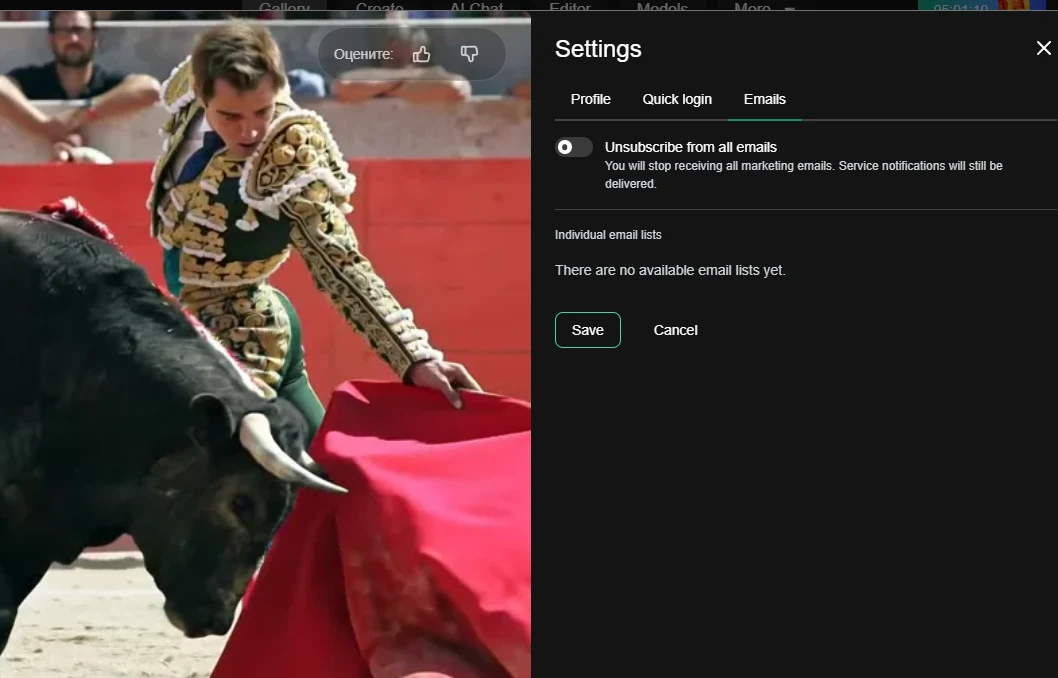
An unsubscribe from all mailings switch, with the explanation that you will stop receiving all marketing emails while service notifications keep coming.
Unsubscribing affects marketing emails only. The sign-in code, archive readiness, payment confirmations, the "account will be deleted soon" letter and other service emails will always arrive — and rightly so, otherwise you could neither sign in nor save your account.
If you never touched a mailing group, its default state applies. So "I never subscribed to anything" does not mean "nothing will arrive".
Below the master switch sits the "Individual mailings" section, where every group has its own name and its own toggle. The service decides which groups exist and that changes over time; if there are none at the moment, it says so — "No mailings available yet". An empty section is not an error.
The master switch dims every group at once but does not erase their settings. While it is on, the individual toggles are shown switched off; lift the master ban and your previous ticks come back. So there is no danger in touching it.
And as on the Profile tab, changes apply only via the save button.
Which emails the service sends at all
Service emails — always sent, cannot be switched off:
| About | When it arrives |
|---|---|
| signing in | the sign-in code, email confirmation |
| payment | a subscription or package payment went through; the subscription renewed; renewal could not be charged; the subscription renews soon; ends soon; has ended |
| moderation | a moderation warning, an account block |
| works and account | the works archive is ready; confirmation of account deletion; the account will be deleted soon; the account was deleted |
Marketing emails — the ones that actually switch off: three welcome emails (immediately, after a day and after a week), the weekly digest and the personal digest.
Three service emails are worth knowing, because they call for action: "auto-renewal payment failed" — the card did not work and the subscription is at risk; "your subscription renews soon" — a warning before the charge, so it can still be cancelled; and "your account will be deleted soon" — which has its own section below.
You can also unsubscribe without signing in — via the link in the email itself: it opens a page with the same toggles as this tab. Handy when you have your inbox but nowhere to sign in right now.
Download all your works
The "Download my images" block is collapsed inside the Profile tab and opens by clicking its heading. Inside — a choice of period: all time, today, yesterday, week, month, 3 months, half a year, year, each showing a number of works. The caption next to the choice carries your email — the address the link will arrive at; it is duplicated as a notification on the site.
The archive is available on paid plans only. On a free plan the block heading is highlighted with a gradient and the build button opens the plans window.
The block has two states, both shown as an orange banner: "building" — then the button is locked, and there is nothing to hurry along, the time depends on how many works there are; and "the archive is ready" — while it exists, a new one cannot be ordered. Under the button you see everything about the current archive: the period and the number of works, the creation date with a "Download" button, and the date it is kept until with a "Delete" button. Want a different one — delete this one first.
What is actually in the archive
- The archive holds compressed versions of your works, not the originals. It is "take everything at once", not "take the best quality". If you need the original and a choice of format — download works one by one.
- File names inside are technical — no prompt, no date. You will not find a specific picture by name; navigate by the pictures themselves.
- If a file failed to download it silently drops out of the archive, and the "ready" email arrives anyway.
Hence a practical tip: compare the number of works in the archive with the number shown for the period. Doesn't match — build it again.
Also: files inside are not recompressed — the zip exists to give you everything in one file, it barely reduces the weight.
Only one archive can exist at a time, and a finished one also blocks a new order. Delete the old one first — the button is right there. An empty period is not archived.
Period boundaries are calculated in your time zone. The link's lifetime is shown next to the archive itself — as a date, not as a number of days.
Before a big clean-up of your works, build an archive: it is the only way to take everything at once. And remember to delete it afterwards, or you won't be able to order the next one.
Deleting your account
The red link at the bottom of the Profile tab. The confirmation window says it outright: all your generations will be deleted, the payment history will be deleted, and on re-registering with this address the welcome bonus is not granted.
Deletion takes two steps. Clicking only sends an email with a link, and the service says so: account deletion has been initiated, an email with a link has been sent. The account is deleted only when you follow it. Changed your mind — just don't open the email.
The link is single-use and time-limited: open it too late and it will not work, so deletion has to be started again.
What happens on confirmation: the account and all works are hidden and disappear from the gallery and search, the active subscription is cancelled, chat conversations are deleted, and files attached to them are wiped from storage.
The window says "irreversible", and for you that is true: you cannot bring the account back yourself. Support can restore an account together with its works — but do not count on that as an undo button.
Chat attachments, however, are wiped for good — that is the one part that disappears irrevocably.
Want to leave but keep your works — build an archive first, wait for the email, download the file, and only then confirm the deletion.
Accounts are deleted for inactivity
If you don't visit and don't create anything for a long time, the account becomes a candidate for deletion. First an email arrives — "your account will be deleted soon" — with a named date and a one-click sign-in link.
There are three ways to cancel, and any of them works by itself:
- follow the link from the email;
- simply visit the site — signing in removes the mark;
- create something — a generation counts as activity.
A generation counts even if you did not sign in again: the account is considered alive while it is being used, not while it is being logged into.
Going away for a long time but want to keep the account — just drop in every few months. Or build an archive of your works so everything valuable is already with you.
The email comes in advance, so "deleted without warning" technically does not happen. That email is a service one — unsubscribing from mailings does not switch it off.
Where to go next
- Take your works before leaving — the archive block above.
- Find out what happens to works when a subscription ends — Plans and payment.
- Sort out privacy for individual works — Your works.
