🌟 Join us on Discord! Chat, share, and get inspired — become part of the ArtGeneration.co community
Your works
Everything you create lives in your profile. It is also your public page: anyone with the link sees your works there. It opens from the user menu, the "Personal" item.
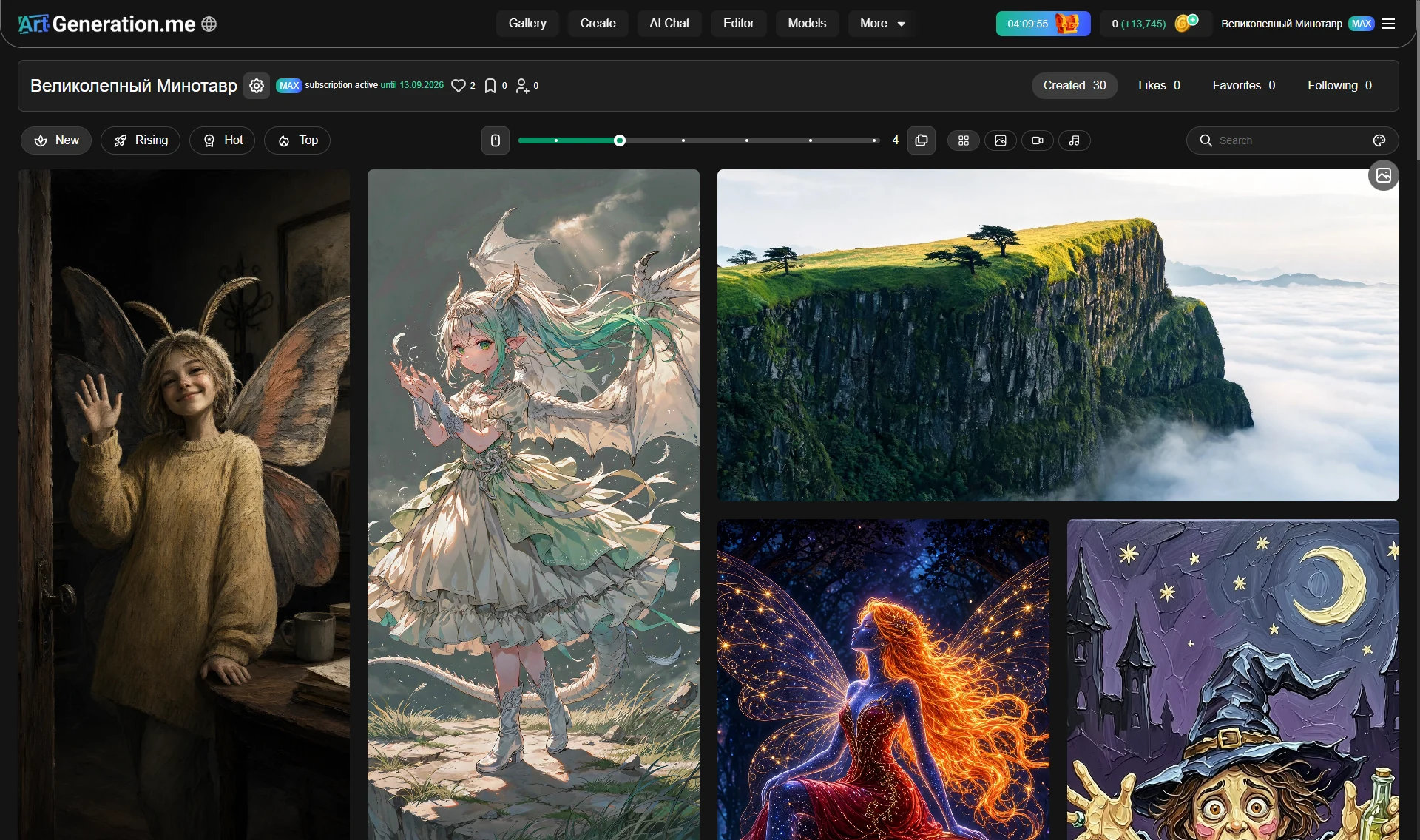
At the top — your name, the settings gear, the plan badge with the subscription date, and three counters: a heart, a bookmark and a person with a plus.
These three numbers are not your activity but your recognition. That is how many likes, how many bookmarks and how many followers you have received.
And here is the trap: below there are feeds with the same names — "Likes" and "Bookmarks" — but they are the opposite, they are what you marked on other people's works. Same icons, opposite meaning.
To understand which of your works land well, look not at the total in the header but at the counters under the individual works.
Four feeds, not one
Under the profile header there is a switch with four feeds, each with its own counter:
- Created — your works. The counter adds up images, video and sound, so it is not zero even for someone who only made music;
- Likes — what you have liked;
- Bookmarks — what you have saved for yourself;
- Following — works by authors you follow.
A like and a bookmark are different things. A like rates the author and puts the work forward for the site cover. Bookmarks are your personal shelf. Looking for "the one I wanted to repeat" — look in bookmarks.
Switching the feed clears the search, the chosen colours and models, and the sorting goes back to "new".
Your own profile and someone else's are built differently
| Your profile | Someone else's | |
|---|---|---|
| four feeds with counters | yes | no |
| folders button | yes | no |
| settings gear | yes | no |
| "subscription active until …" | yes | no |
| follow the author button | no | yes |
| report the author button | no | yes |
If you followed a link to another profile and cannot find "your feeds" — you are simply not on your own page. There are counters in the header there too, but those are their likes and followers, not a switch for your feeds.
Finding your work by colour
To the right of the search there is a palette button. It opens a window "Select colors (up to 4)": a grid of shades, a "Selected:" row with four slots, and "Apply" and "Cancel" buttons.
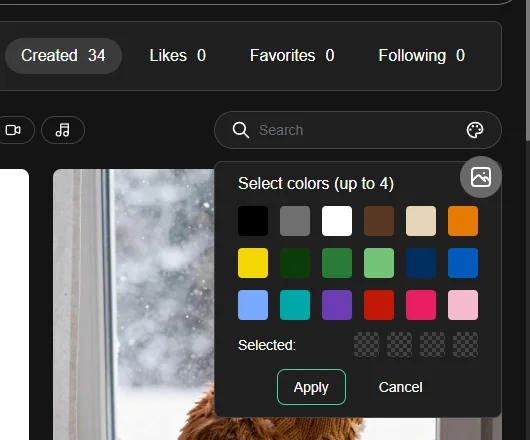
This is for when you remember the picture rather than the prompt: "there was a red cloak against a dark background". Start with one or two colours — several combine as "and". The same trick works in the gallery, only there across other people's works.
Folders are dates
The folder button next to the density slider switches "Created" between a plain feed and a folder view.
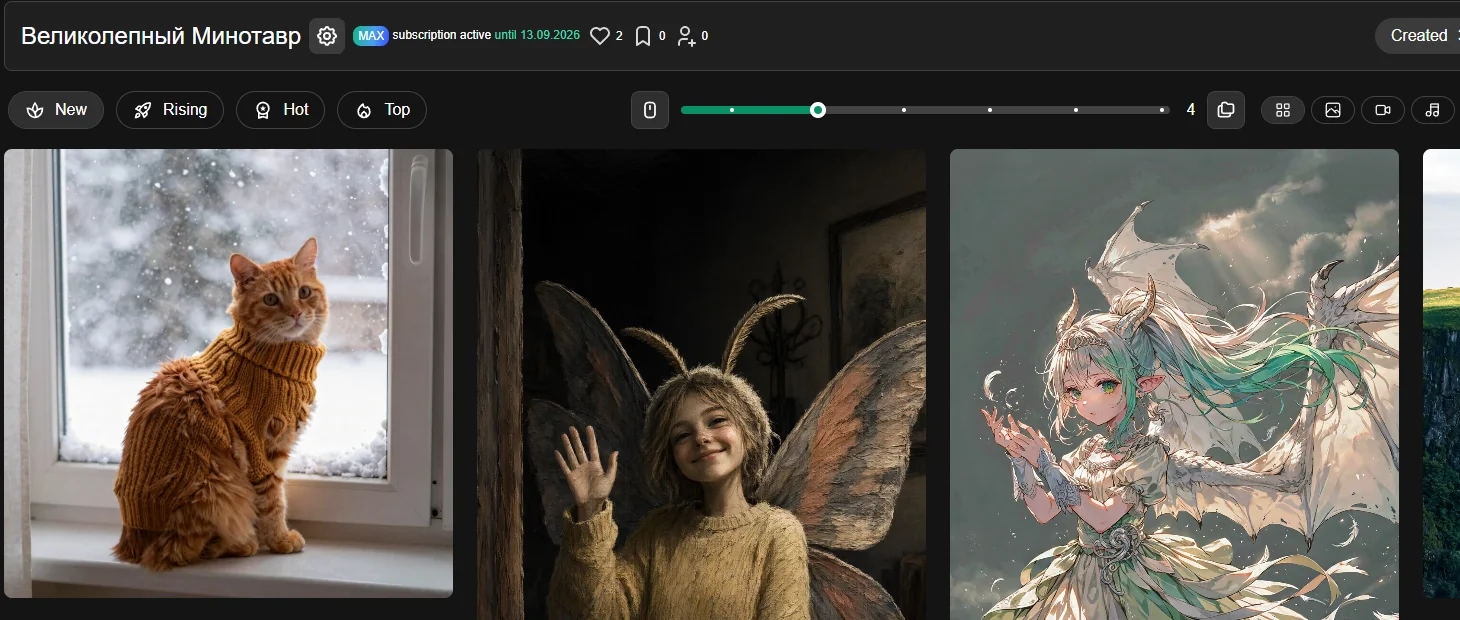
Every work goes automatically into a folder named after the day it was created. The card shows a cover from the latest work, the date and the number of works inside.
You don't create folders. You cannot put works into your own folder "Client project", rename it, or move a work from one day to another.
There are no empty folders — a folder disappears together with its last work, and that is not a fault. And a restored work goes back into the folder of its own day, not today's; if that folder had vanished, it is recreated.
Deleting a folder deletes every work inside it. This is not "remove the grouping" but a bulk delete, and there will be no "you are deleting N works" confirmation.
The folder view has its own bulk actions panel, built exactly like the one for works: a round button, "select all", "clear selection", a counter and a confirm button. Its single action is delete too, and it takes the works away along with the folders. Next to it sit their own density slider and the "scroll ↔ pages" switch.
Looking for a work from last week — switch to folders and open that day. Faster than scrolling a continuous feed.
Selecting several works
The round button above the feed opens the bulk actions panel: select all, clear selection, a counter of what is selected, a list of actions and a confirm button.
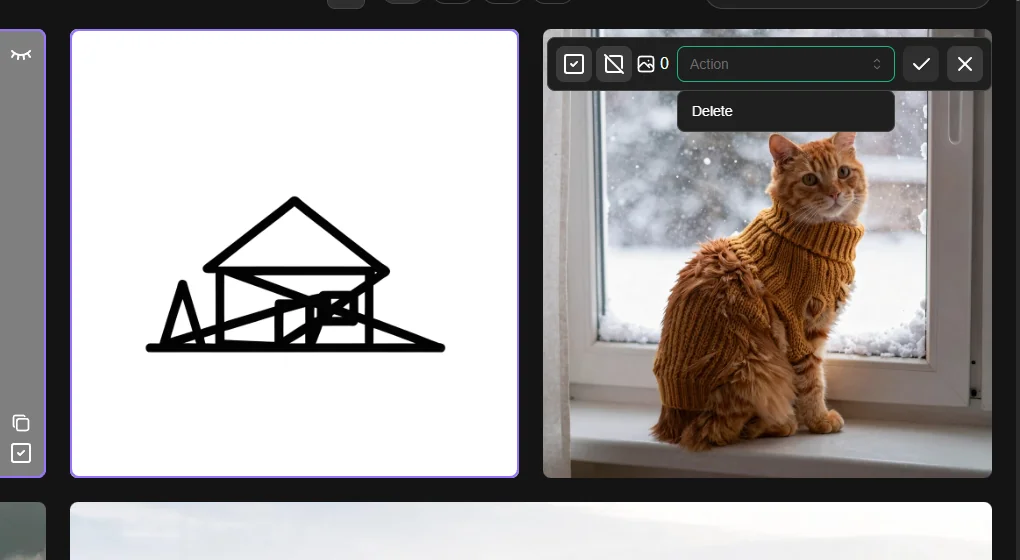
There is only one action in the list — delete. No moving, no downloading in bulk: "take everything" is what the archive in settings is for. And until an action is picked from the list, the confirm button is inactive — a common reason behind "nothing happens".
The panel opens by itself as soon as you tick the first work, and sticks to the top of the screen as you scroll.
The tick on a card is a small square, and a selected work gets a corner frame around it. On a dense grid that marker gets lost — if you cannot tell what is selected, lower the density. A blurred "adult" work has the same square, sitting on top of the blur — no need to peer at it to tick it.
You can only tick works in "Created" and in folders: "Likes", "Favourites" and "Subscriptions" hold other people's works, and there is no panel there. There is no square inside an opened work either. And the selection lives until you reload the page — it is a choice in the browser, not a property of the work.
"Select all" works on the current feed, so filter first and select after. And note: a bulk delete is just as reversible as a single one, but you will have to restore one by one — there is no bulk "restore" button.
Delete and restore
It is one button that changes meaning: a bin on an ordinary work and a restore arrow on a deleted one. There is no delete confirmation — you press it, the work is marked deleted, and the button immediately becomes "Restore".
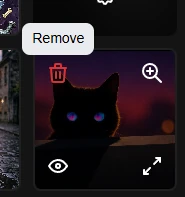
A deleted work stays in the feed in a special form — a red plate — until you leave the page. That is exactly why one click brings it back.
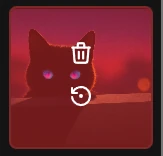
The window for restoring is about an hour. An hour after deletion a job starts that wipes the files from storage. Restoring within that hour cancels the wipe; after it there is nothing left to restore. Changed your mind — restore now, not "tomorrow".
Deleting lowers the profile counters and restoring brings them back — separately by type: deleting clips does not reduce the picture count. Deleted works also drop out of the running for the site cover.
A work can be restored by its owner only, and only once: a second press returns a message saying the work has already been restored.
Hide a work without deleting it
Every work of yours has a privacy toggle with self-explanatory labels: "Visible to everyone" and "Visible only to you".
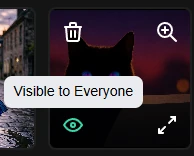
A private work disappears from the shared feed, from search and from your public profile, but stays with you. Switching back returns it to the feed.
Don't delete a work if you simply don't want to show it — make it private. Privacy can be toggled both ways as many times as you like, while deletion is a decision with an hour on the clock.
Privacy can be changed by the owner only and on a paid plan only. On a deleted work it cannot be changed — you get a message saying the work is already deleted.
This is not the same as private mode in the generator: there you decide in advance, for new works; here you decide after the fact, for one finished work.
Downloading
Images have a menu of three formats: WebP, PNG, JPG.
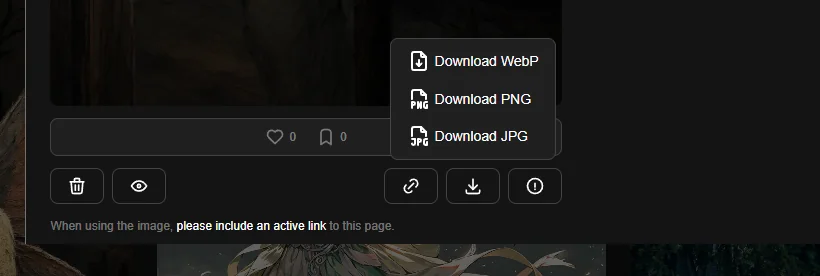
- on the free plan only WebP is available; PNG and JPG are shown inactive, and clicking them opens the plans window instead of downloading;
- SVG appears in the menu only for vector works — and is available to everyone, including the free plan.
Video and audio have no menu — one button: a clip downloads as MP4, sound in its own format, the very file the model produced.
A work tagged "adult" or "disturbing" cannot be downloaded until you switch their display on in profile settings — instead of a download, the settings open. And on the free plan such works cannot be downloaded in any format.
For a guest the download button offers a sign-in instead: taking the file requires an account — even for someone else's work from the shared feed.
WebP weighs less and opens everywhere except old software. If the file is for print or for a client — take PNG. And if you need everything at once rather than work by work, profile settings have an archive build for a period — but it holds compressed versions: Profile and settings.
Reporting a work or an author
The form is the same for both cases. It shows the identifier of what you are reporting, a warning that the report will be reviewed, a choice of one reason and an "Additional" field capped at 200 characters.
There are eight reasons: pornography, exploitation of minors, fraud, violence, discrimination, copyright, unaesthetic image, other.
The comment field appears only after a reason is chosen, and until then the submit button is inactive. That is a common reason behind "the button doesn't click".
The reason "unaesthetic image" sits in the same list as the serious ones — but it is about quality, not about breaking the law. Don't hesitate to use it, and don't send it instead of a serious report.
What counts as a violation is described in the rules.
Where to go next
- Download everything at once or delete the account — Profile and settings.
- Keep working on a finished picture — Generator.
- Understand how a like differs from the site cover — Gallery.
