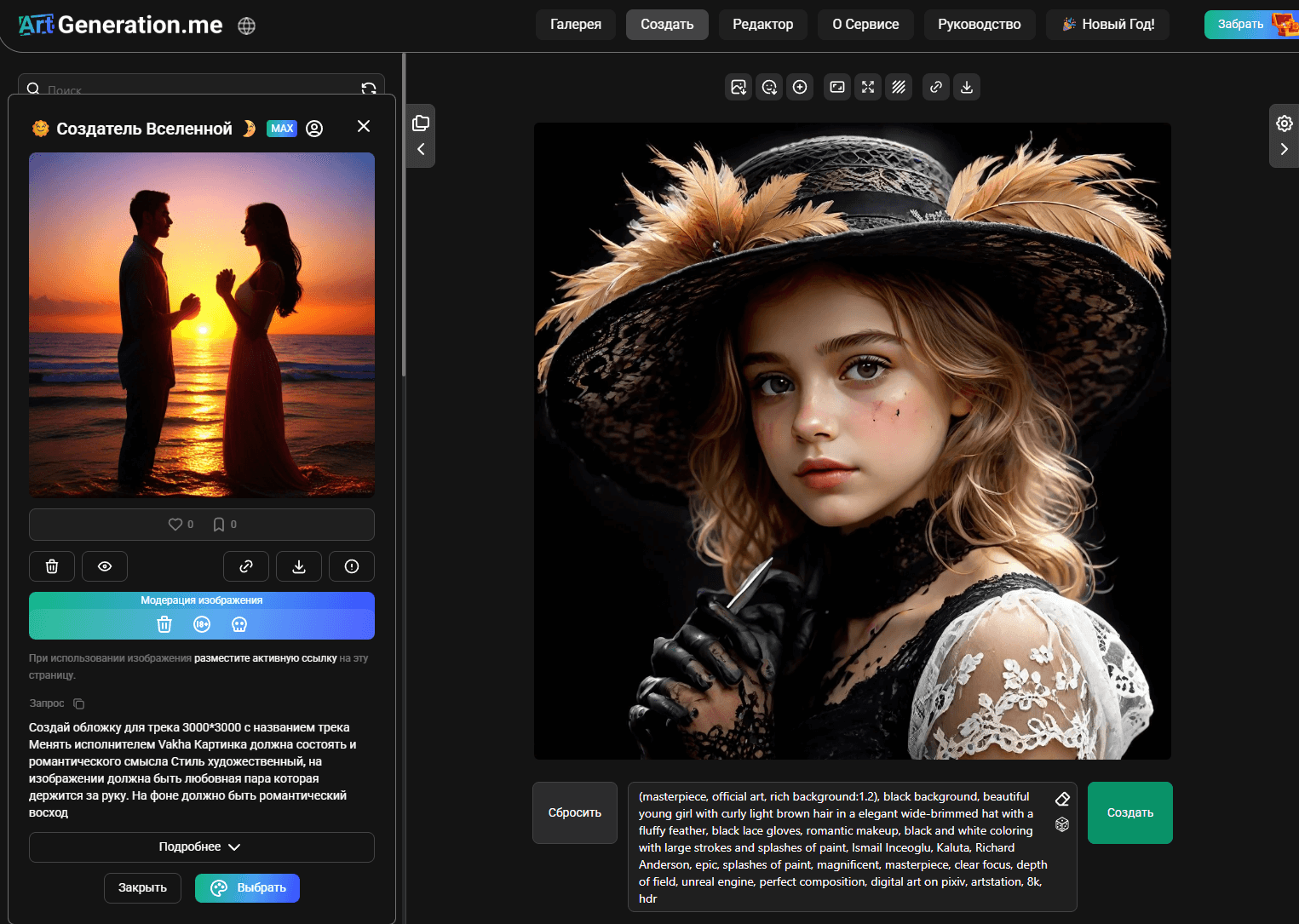
Image Generator
The Generator is the main tool of the platform for creating images using artificial intelligence. Here you can bring your ideas to life using text descriptions.
Prompts
A prompt is a text description of the image you want to create. The quality of your prompt directly affects the result.
Writing Effective Prompts
Write prompts in English for best results. Most AI models are trained primarily on English data.
A good prompt includes:
- Main Subject — what or who is depicted (a woman, a cat, a landscape)
- Details — specific features (long red hair, blue eyes, wearing a dress)
- Environment — where the scene takes place (in a forest, on a beach, in a city)
- Lighting — type of light (soft sunlight, dramatic shadows, neon lights)
- Style — artistic direction (oil painting, digital art, anime)
- Quality — technical parameters (highly detailed, 8k, masterpiece)
Weights in Prompts
You can emphasize or de-emphasize certain elements using weights:
(word)— slight emphasis (1.1x)((word))— stronger emphasis (1.21x)(((word)))— very strong emphasis (1.33x)(word:1.5)— custom weight (1.5x)(word:0.5)— reduce importance (0.5x)
Example:
a beautiful woman with ((long red hair)), (blue eyes:1.3), wearing a white dress
Negative Prompt
The negative prompt describes what should NOT appear in the image. This helps avoid common issues:
Common negative prompt elements:
bad anatomy, bad hands, missing fingers— anatomical errorsblurry, low quality, pixelated— quality issueswatermark, text, logo— unwanted overlaysduplicate, clone— repetition artifacts
Model Selection
Different models produce different styles and quality levels. Choose based on your needs:
Available Model Types
- Realistic — photorealistic images, portraits, landscapes
- Anime — anime and manga style illustrations
- Artistic — paintings, digital art, creative styles
- Fantasy — fantasy art, magical themes
- Sci-Fi — futuristic, cyberpunk aesthetics
Some models are only available with PRO or MAX subscriptions. Check the model card for availability.
Resolution
Choose the output image dimensions. Available options depend on your subscription:
Aspect Ratios
- 1:1 (512x512, 768x768, 1024x1024) — square, good for portraits
- 16:9 (1024x576, 1920x1080) — widescreen, landscapes
- 9:16 (576x1024, 1080x1920) — vertical, mobile wallpapers
- 4:3 (1024x768) — classic ratio
- 3:4 (768x1024) — portrait orientation
Resolution Limits
- FREE — up to 768x768
- LIGHT — up to 1024x1024
- PRO/MAX — up to 1920x1080
Styles
Styles are pre-configured modifiers that affect the visual appearance. Over 307 styles are available:
- Art Styles — Oil Painting, Watercolor, Pencil Sketch
- Photography — Portrait, Landscape, Macro
- Digital Art — 3D Render, Vector Art, Pixel Art
- Historical — Renaissance, Baroque, Art Nouveau
- Modern — Pop Art, Minimalist, Abstract
Performance Modes
Control the balance between speed and quality:
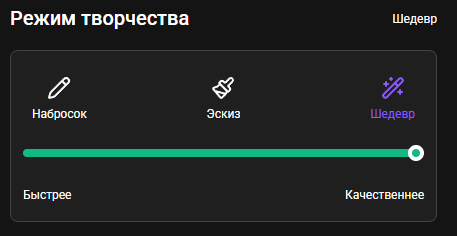
- Sketch — fastest generation (5-10 seconds), lower quality, good for testing ideas
- Draft — balanced mode (15-20 seconds), good quality for most uses
- Masterpiece — highest quality (30-60 seconds), maximum detail and refinement
LoRA Models
LoRA (Low-Rank Adaptation) models fine-tune the generation for specific styles or subjects:
- Character LoRAs — specific character appearances
- Style LoRAs — particular artistic styles
- Concept LoRAs — specific objects or themes
Using LoRA
- Select a base model
- Choose a compatible LoRA
- Adjust LoRA strength (0.1-1.0)
- Generate
Seed
The seed is a number that controls the randomness of generation:
- Same seed + same parameters = similar result
- Random seed = unique result each time
- Use seed to create variations of a successful image
- Copy seed from gallery images to recreate similar results
Init Image (img2img)
Upload an image as a starting point for generation:
Use Cases
- Stylize photos — transform photos into art
- Create variations — modify existing images
- Add elements — enhance images with new details
- Color correction — change color schemes
Denoising Strength
Controls how much the original image influences the result:
- 0.1-0.3 — subtle changes, keeps original structure
- 0.4-0.6 — moderate changes, balanced transformation
- 0.7-0.9 — significant changes, more creative freedom
Inpainting
Edit specific parts of an image while keeping the rest unchanged:
- Upload an image or use a generated one
- Paint over the area you want to change
- Write a prompt for the new content
- Generate
For best inpainting results, paint slightly beyond the edges of the area you want to change.
Face Swap
Replace faces in generated images (PRO/MAX only):
- Generate or upload an image with a face
- Upload a reference face photo
- Click "Face Swap"
- Wait for processing
Upscale
Increase image resolution while maintaining quality (PRO/MAX only):
- 2x Upscale — double the resolution
- Uses AI to add detail, not just resize
- Best for finalizing images for print or large displays
Background Removal
Remove the background from any image (PRO/MAX only):
- Creates transparent PNG
- Useful for compositing
- Works best with clear subject separation
Generation Tips
- Start simple — begin with basic prompts, then add details
- Use references — copy parameters from gallery images you like
- Experiment with seeds — find a good seed, then vary other parameters
- Try different models — each model has strengths
- Use negative prompts — prevent common issues
- Iterate — use img2img to refine results
Generator Gallery
Click on an image in the generator gallery to open it in the main work area. This will load the prompt used to create the image along with all its settings, allowing you to recreate or modify the image.