Image Editor
The editor allows you to modify generated images without the need for third-party programs. It's a powerful tool for finalizing your generations.
How to Open the Editor
There are several ways to open an image in the editor:
From the generator gallery
Hover over an image and click the "To Editor" button.
From the main gallery
Open an image and select "Edit".
Directly
Go to the "Editor" section in the navigation and upload an image.
Main Tools
Crop
Crop the image to the desired size or aspect ratio. Available presets:
- Free crop
- 1:1 (square)
- 16:9 (widescreen)
- 9:16 (vertical)
- 4:3 (classic)
Scale
Resize the image while maintaining proportions. Useful for preparing images for social media publication.
Rotate
Rotate the image to any angle. Quick rotations at 90° and precise angle adjustment are available.
Flip
Flip the image horizontally or vertically. Often used to fix composition.
Filters and Effects
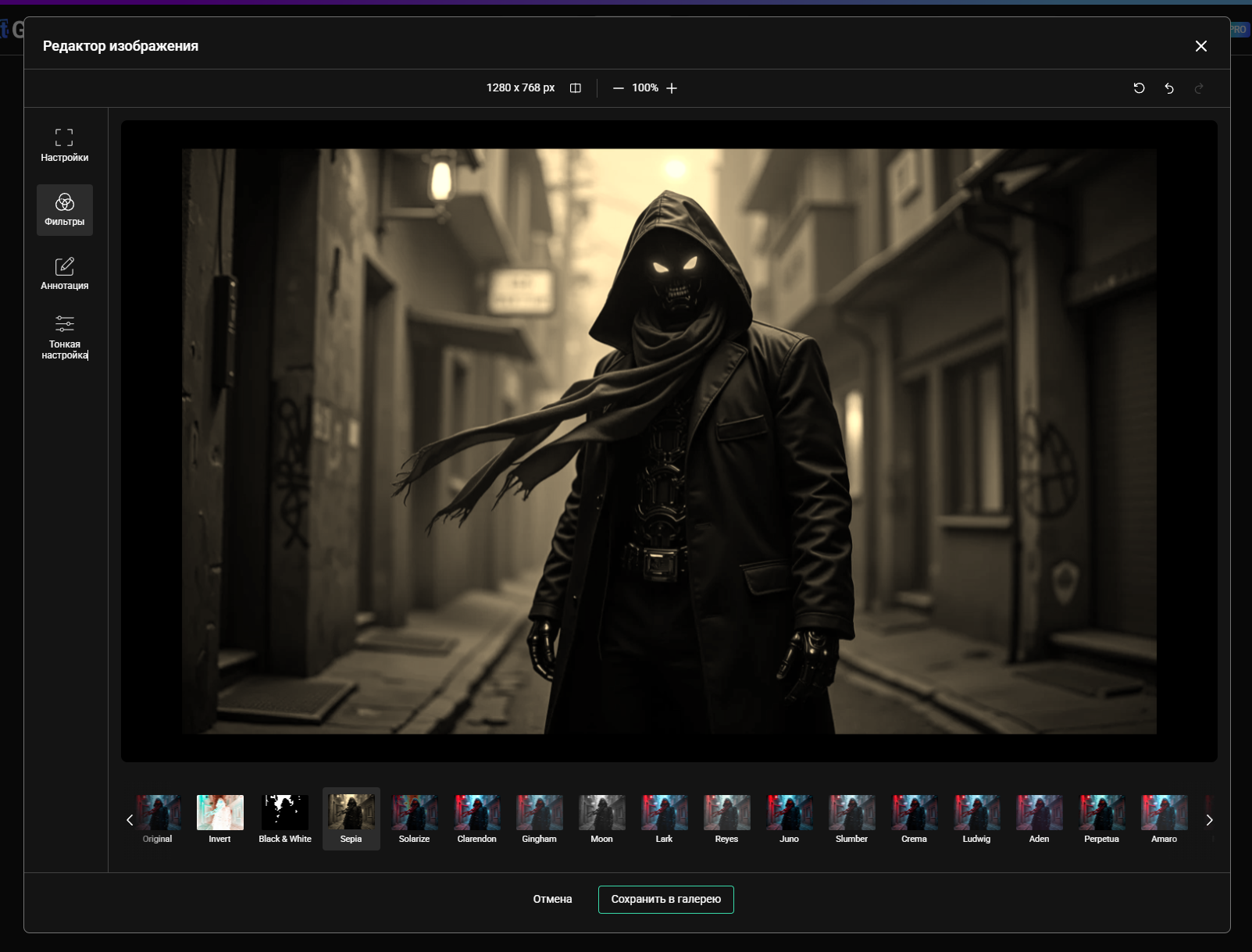
Filters are applied non-destructively — you can always return to the original or undo changes.
Available Adjustments
- Brightness — lighten or darken the image
- Contrast — strengthen or weaken the difference between light and dark areas
- Saturation — color intensity
- Exposure — overall lighting
- Shadows — detail in dark areas
- Highlights — detail in bright areas
- Temperature — warm or cool tones
- Tint — color shift
Artistic Filters
- Blur
- Sharpen
- Vignette
- Grain
- Black & White
Drawing and Masks
Brush
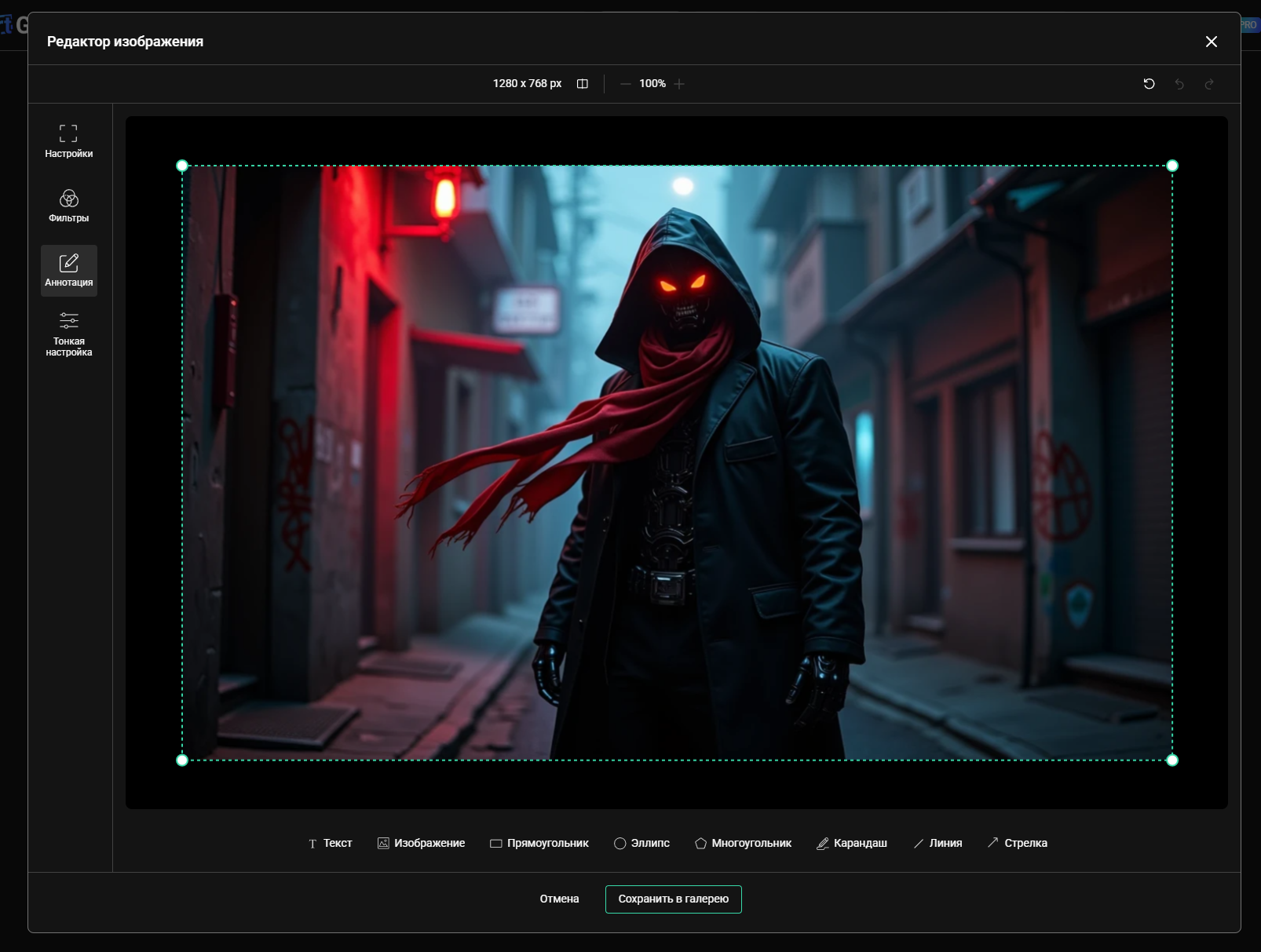
Draw over the image with various brushes:
- Brush size adjustment
- Edge hardness adjustment
- Color selection
- Opacity adjustment
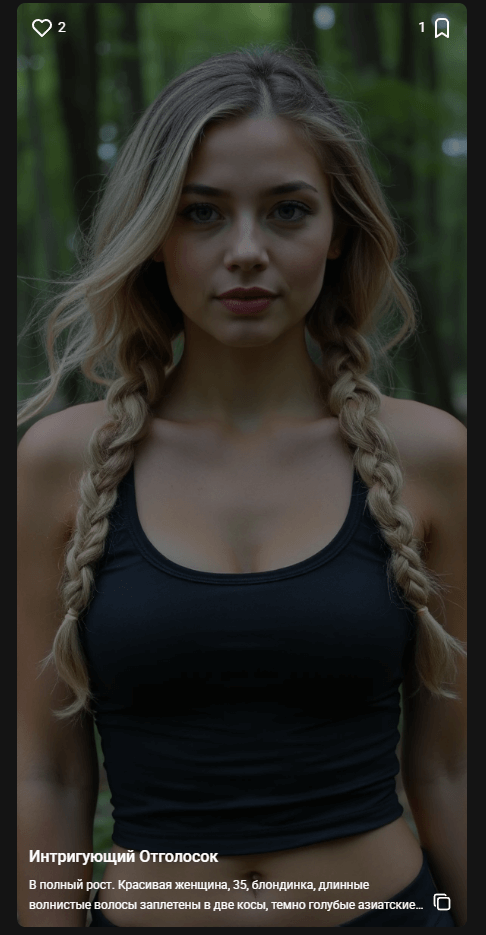
Mask for Inpainting
Create masks for selective editing:
Select the tool
Select the "Mask" tool from the toolbar.
Paint the area
Paint over the area you want to change.
Send to generator
Click "Send to Generator".
Write a prompt
Write a prompt for the new area.
Start generation
Start generation and wait for the result.
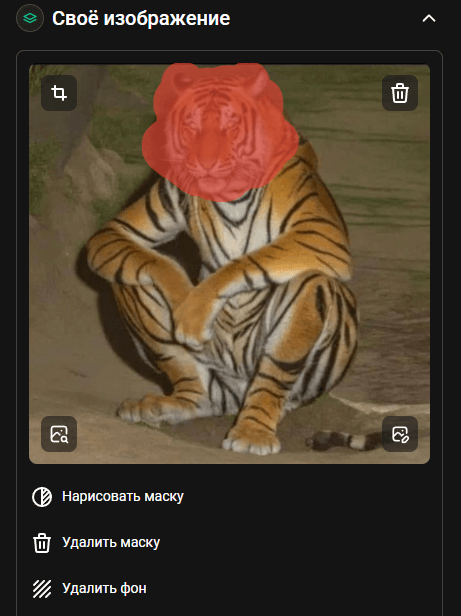
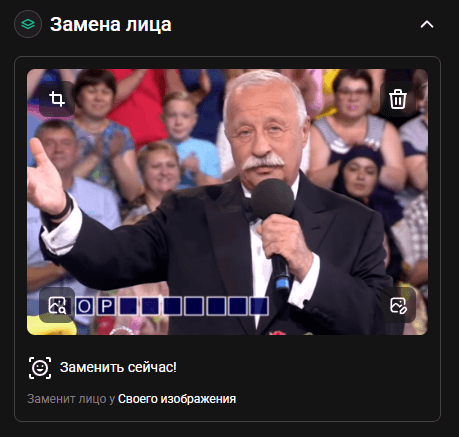
For quality inpainting, it's recommended to paint the area with a small margin beyond the object you want to change.
Text and Labels
Add text to images:
- Font selection
- Size adjustment
- Text and outline color selection
- Positioning
Layers
The editor supports working with layers:
- Adding new layers
- Changing layer order
- Layer opacity adjustment
- Blending modes
Saving and Export
After editing, you can:
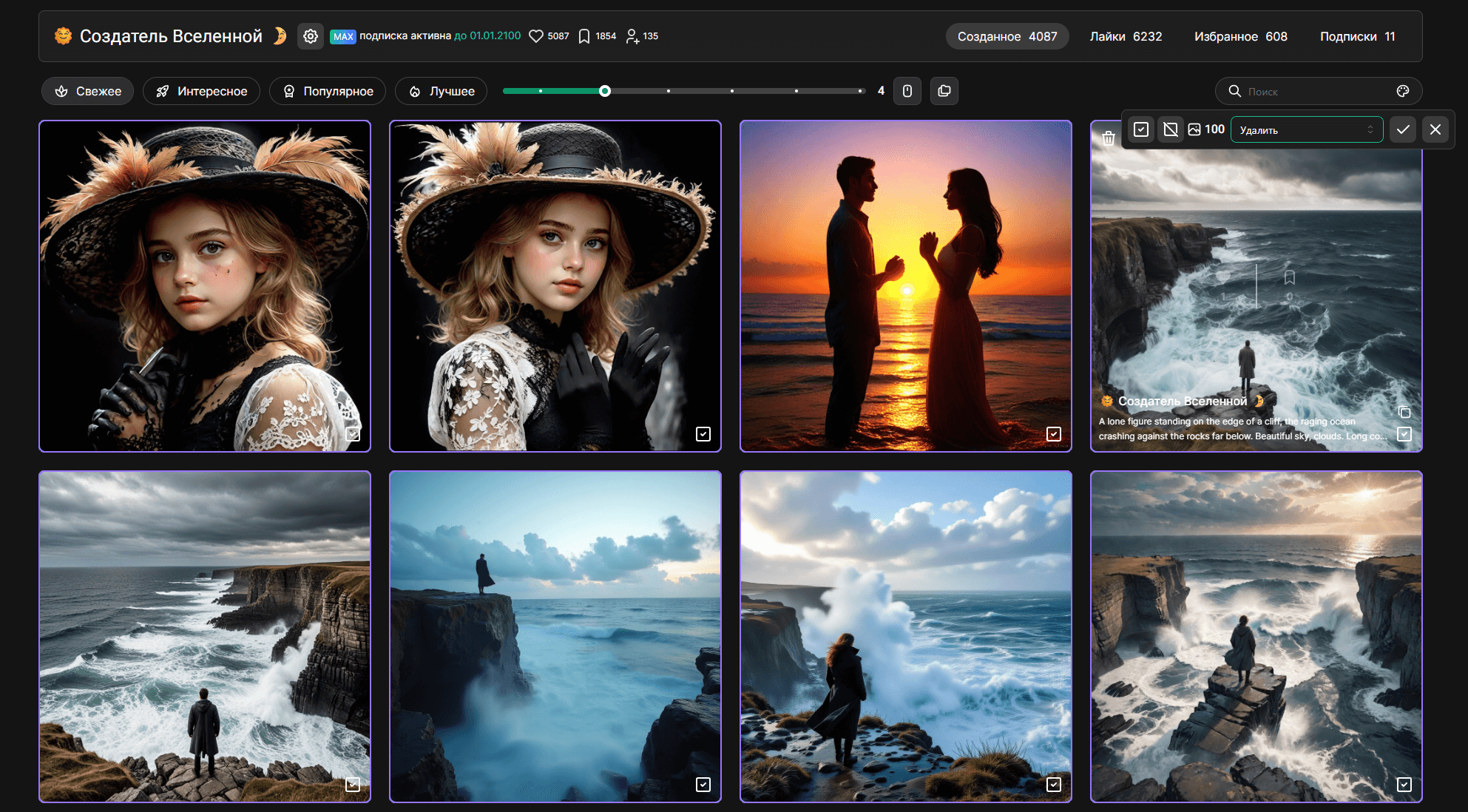
- Save to gallery — the image will appear in your personal gallery
- Download — save to your device in PNG or JPEG format
- Send to generator — use as a base for new generation
Export Formats
- PNG — lossless quality, transparency support
- JPEG — smaller file size, quality adjustment
Integration with Generator
The edited image can be used as an Init Image for further generation. This allows you to create complex compositions iteratively:
Generate a base image
Create an initial image in the generator.
Edit in the editor
Open the image in the editor and make the necessary changes.
Send back to the generator
Send the edited image back to the generator.
Add new elements
Add new elements through inpainting.
Repeat the process
Repeat the process until you achieve the desired result.
The iterative approach allows you to gradually improve the image and achieve more precise results.
Keyboard Shortcuts
- Ctrl+Z — undo last action
- Ctrl+Y — redo undone action
- Ctrl+S — save image
- Space + drag — pan across the image
- Mouse wheel — zoom
