🌟 Join us on Discord! Chat, share, and get inspired — become part of the ArtGeneration.co community
AI Chat
The chat gives you access to text neural networks: ask, explain, translate, write code, go through a document or a picture. It differs from the generator fundamentally: the chat is text-only, there are no "Images" or "Video" tabs here, even though the screen layout looks similar.
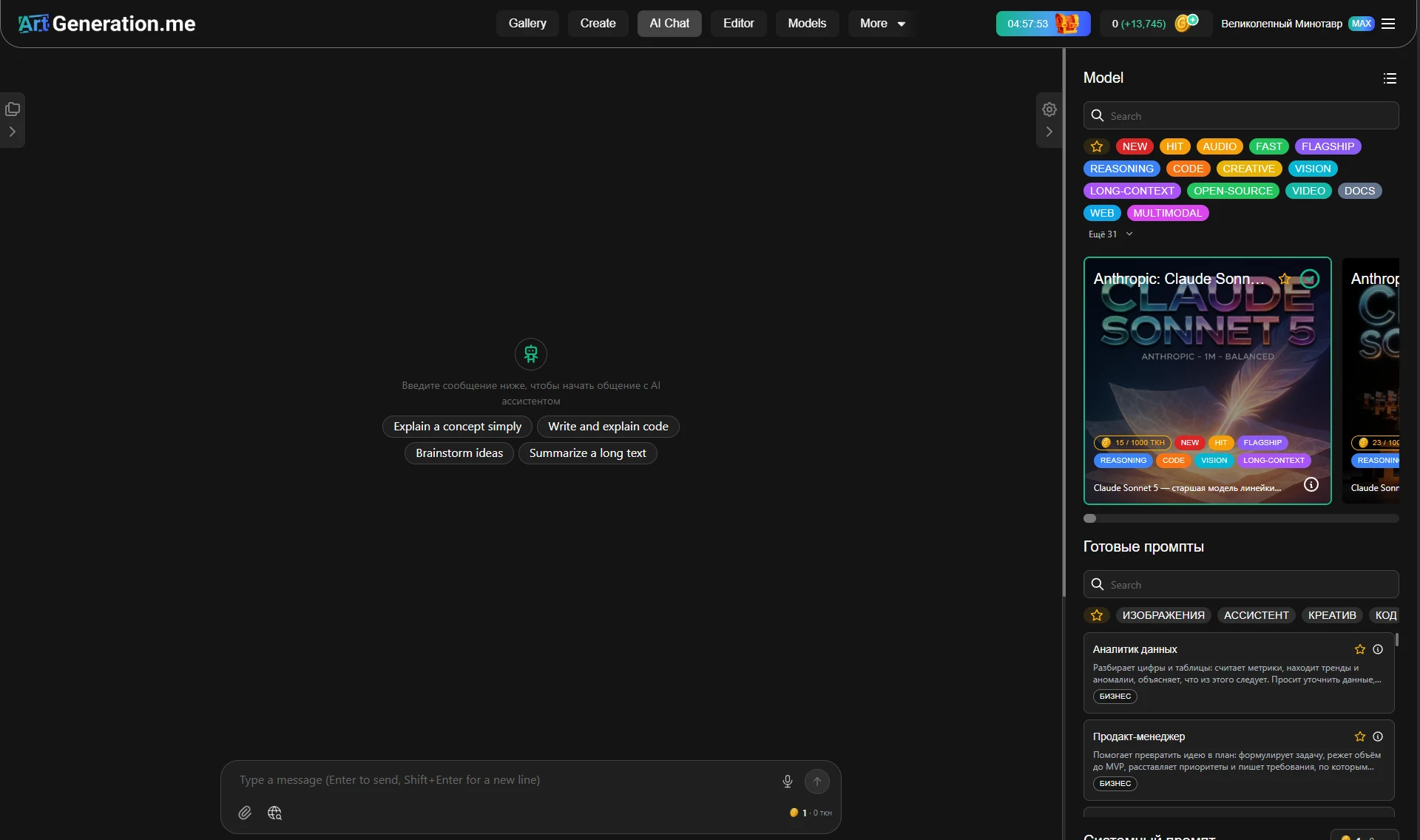
Three parts: the list of conversations on the left, the conversation in the middle, the settings on the right.
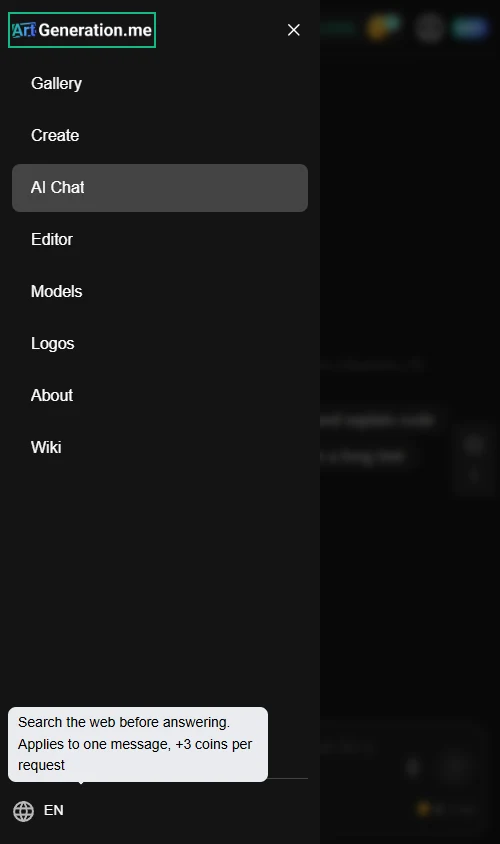
The chat has its own header, and on a wide screen there is no globe in it. To change the language, leave the chat for any other page — or open the side menu (the button at the top left): the language switcher is always at the bottom of that menu. See Profile and settings.
Here is how it looks on a phone: the side menu opened straight from the chat, every section of the site inside it, and at the very bottom, below the rule, the globe with the current language.
The right panel: four blocks
Model · Ready-made prompts · System prompt · Additional. The last block does not always appear — it is assembled from what the selected model can do.
This is the main answer to "why don't I have that button". The reasoning, tools and web-search toggles, the parameter sliders, accepting attachments — all of these are capabilities of a particular model. If the model does not have one, the control is not "hidden" and not "broken" — it does not exist.
Hence the working rule: if a toggle is missing, change the model rather than hunt for a setting.
Choosing a model
A list of models with search and tags, as in the generator. Text models are priced per thousand tokens, and the price is on the card.
Tags are a filter by task. Need a picture or a screenshot analysed — take a model tagged VISION, otherwise the attachment simply won't be accepted. Need long documents — look at LONG-CONTEXT. Comparing models is easier in the catalog, where each has a description.
Ready-made prompts: roles for the assistant
These are not sample questions but system prompt templates — ready roles for a data analyst, a product manager, a technical writer, a contract editor, a scriptwriter, a translator, a senior developer and more. Their names and categories stay in Russian on the English locale, so go by the card's description. Roles have search, categories and bookmarks: a marked role rises in the list, and the star to the left of the categories leaves only the marked ones — the same trick as with styles in the generator.
Open a role's card — the full text of its prompt is there, and it can be copied. Look at how a ready role is written and write your own by that example. The text is often long and scrolls inside the card: if it seems to break off mid-sentence, scroll it.
Example. The "translator" role sets the behaviour once — after that you just drop text into the chat, with no "please translate" in front of every chunk.
Tip. A role is a starting point, not a restriction: pick a ready one and add your own lines to the system prompt, they don't conflict.
The list of roles is loaded from the server, so it has a loading state and an error state with a "Retry" button. The list may grow, and its height is limited — if it looks like there are only three roles, scroll.
The system prompt
The field reads "Set the assistant's behavior…", and its tooltip spells it out: "Instructions that define the model's behavior at the start of each conversation". Next to the block heading sits its own cost counter and a token estimate — something like "1 · 23 tok." — so you can see what the instruction itself costs.
The system prompt is billed separately and on every request. A three-screen instruction will cost money each time you say "hi". A short system prompt is both cheaper and more effective.
The eraser on the right of the field appears only when there is something in it, and it also clears the selected role — text and choice at once. There is no separate "remove role" button, which is not obvious.
Additional: answer parameters
- "Max output tokens" — a slider whose bounds are set by the model.
- "Response verbosity" — three buttons: Concise · Balanced · Detailed; the middle one is picked by default.
- «Рассуждение» (reasoning) — a toggle on models that can do it, and one of the labels left untranslated. Turning it on reveals the reasoning effort steps.
- «Инструменты» (tools) — a toggle on models that support tools, on by default; also untranslated.
If a model already describes its reasoning in a scheme of its own, no separate toggle appears: the service does not show two identical controls.
The reasoning effort steps come with the model, and each costs differently. Different models have a different number of steps, so a universal "low / medium / high" does not exist. One rule holds: the higher the step, the more expensive the request.
Reasoning helps on logic problems and gets in the way on simple ones, where it only burns tokens. For "rewrite this email more politely" it is better off.
Tools: when the answer is drawn, not written
With tools on, the model can answer not with text but with a widget: a chart or a table, a plan with step progress, source cards, a list of options to choose from, an order summary, a carousel of cards, an image, a video or audio player, points on a map, terminal output.
Example. "Compare three plans by price and limits" with tools on gives a real table rather than text with asterisks. "Plot sales by month" gives a real chart.
Tools are not "smarter", they are clearer. Turn them on when you expect a comparison, a list of steps or numbers; turn them off for ordinary conversation.
What else an answer can render
An answer is not plain text. It supports GitHub-style markup (tables, checklists, strikethrough), mathematical formulas instead of raw LaTeX, and code with highlighting and a copy button.
The chat can draw diagrams. Ask for a mermaid diagram — "draw the order process as a mermaid diagram" — and you get a finished flowchart as a picture right in the answer, not text made of dashes.
Buttons around the input field
To the left of the field — a paperclip and a web search icon. To the right — a microphone and the Send arrow, with the message cost counter beside it.
Web search

The globe icon makes the model go to the internet before answering. The tooltip spells it out: "Search the web before answering. Applies to one message, +N coins per request" — the surcharge is written right there.
The key phrase is one message. This is not a mode that stays on: for the next question you press the button again. Turn it on where freshness matters: prices, news, versions, documentation.
An answer made with search arrives with links to its sources — they are visible right in the thread, so the numbers can be checked.
Some models search the internet by themselves — they have no toggle and don't need one.
Attachments
You can attach with the paperclip or by dragging files into the window — while dragging, a "drop the files to attach" hint appears. The service lists the formats itself, in the paperclip's tooltip: images PNG, JPG, WEBP, GIF; PDF documents; text and code TXT, MD, CSV, JSON, YAML, LOG and others; audio MP3, WAV, OGG, FLAC, M4A; video MP4, MOV, WEBM.
Every file has its own status — queued, uploading, uploaded, error, cancelled; an upload can be retried, cancelled, or the file removed. Removing works only for what has not gone into the chat yet: a sent attachment disappears together with its message.
The fastest way to show the chat one of your older works is to paste its link straight into the message text. The service downloads the file and attaches it itself. If the work has been deleted or is unavailable, the link will not attach and you get a separate "Could not attach the link" message. And a picture from the generator can be sent to the chat with the single "Discuss with AI in chat" button — see Generator.
An attachment can be refused for three different reasons, and each is cured differently:
- too many files in one message — the limit is substituted into the message; when dragging a batch, only the first ones are added;
- the format is not supported at all — the message lists what is allowed;
- the model cannot read such files — the format is fine, but the selected model does not work with it. Only changing the model helps here.
Attachments are estimated in advance and cost coins: if the balance is short, the service says outright what the files were estimated at and offers to remove some or top up.
What a message costs
The mechanics are the same as for image generation: before sending, coins are reserved with a margin — based on your text, the system prompt and the maximum answer length. After the answer, the actual usage is charged and the difference returns. Attachments add a separate sum, and reasoning and web search make a request more expensive.
The cheapest way to hold a long conversation is to start a new one for a new topic. The estimate includes the whole context, and context grows with the length of the thread: the twentieth message costs noticeably more than the first. More about coins — Coins and limits.
A live answer and what is under it
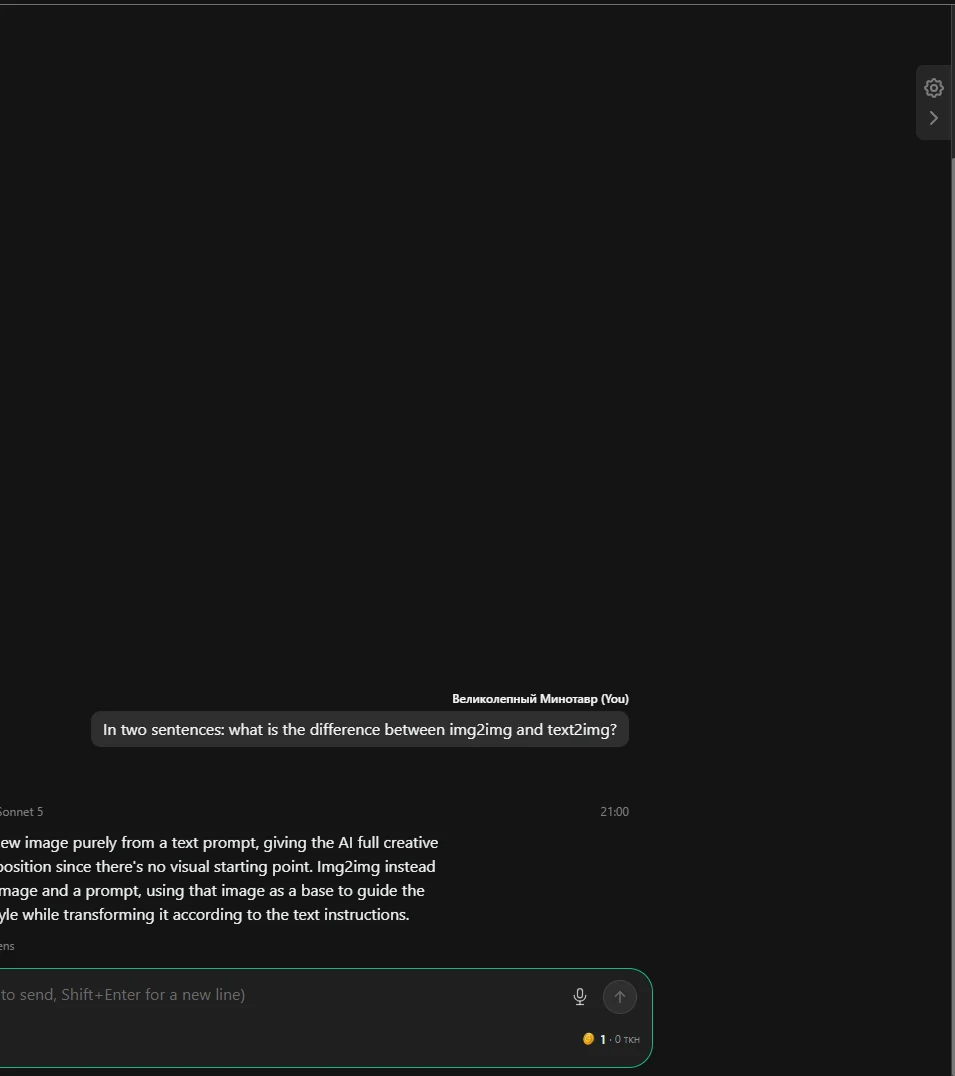
The answer types itself out in front of you. Under it — the token count and the generation time; an answer made with search carries a note saying so.
A message has seven states: sending, request accepted, generating an answer, recovering the answer, answer ready, generation error, cancelled.
"Recovering the answer" is the most puzzling of them and it is not an error: that is how an answer the service is pulling back after a connection drop is marked. You can safely wait.
Actions on a message
Copy · Download as Markdown · Regenerate · Send again · Retry · Edit.
"Download as Markdown" is worth remembering. A long answer leaves as a file with its markup, tables and code intact: handy when the answer has to go to a colleague or into documentation.
Three cases where the buttons silently do nothing:
- "Retry" works only for a failed or cancelled answer. On an ordinary finished answer it will not fire;
- any action is blocked while an answer is being generated in this conversation: one conversation, one stream — a second answer will not start alongside;
- if the message had files and they are no longer available, retry and edit will not work — an attachment lives for one message. The way out: send a new message and attach the files again.
"Edit and send again" cuts the conversation from that message onwards — everything that came after disappears. This is a common loss: someone edits an old question and loses the whole branch below it. Editing applies to your own message only: an assistant's answer is changed with "Regenerate", not by editing.
An answer can be stopped mid-sentence, and nothing is lost. The part already written is kept, the message is marked "Cancelled", your question stays in the thread, and "Retry" appears next to it. Pressing stop is not scary.
An empty message cannot be sent, but a message consisting only of attachments, with no text, can.
Conversations
On the left — the list: search, grouping by Today / Yesterday / N days ago, renaming, deleting and "New chat". An unnamed conversation is called "New conversation".
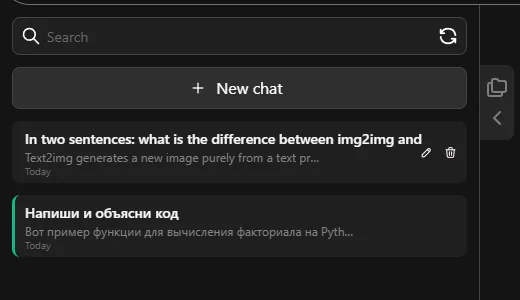
Conversations are stored on the server, not in the browser. They are there from another device and after clearing the cache — just sign in to the same account.
There is also "Clear conversations" — deleting them all at once.
Two caveats about clearing: while an answer is being generated in any conversation, it will not run — nothing happens at all, so wait for the answer first. And if even one conversation fails to delete, the list comes back as it was: there is no "half-deleted" state.
If the chat answers with an error
| Message | What it means and what to do |
|---|---|
| "The current message does not fit into the selected model's context" | the conversation or attachment is longer than the model can read — start a new chat or take a model with a bigger context |
| "The selected model cannot work with images — choose another model or remove the picture" | the message names both ways out itself |
| "This file format is not supported" | the list of allowed formats is substituted into the message |
| "No more than N files can be attached to one message" | the limit is supplied by the server |
| "One or more chat attachments were not found, already used or unavailable" | an attachment lives for one message; attach the file again |
| "The attachment is too large to send to the chat" | the file will not go through whole — shrink it or send a fragment |
| "The chat history has changed. Refresh the chat and try again" | the conversation changed meanwhile — for example, it is open in a second tab |
| "Session expired. Sign in again" | the sign-in ran out of time; the thread on the server is intact |
| "The connection dropped before the answer finished" | the link broke mid-sentence — press "Retry" |
| "Parallel answers limit" | you started answers in several conversations at once; wait for the current ones |
| "Chat models are unavailable for now" | the model list did not load; the panel has a button to load it again |
| "The request is still processing" / "The request was already accepted" / "The request is already complete" | pressing again broke nothing and charged nothing twice |
"The chat history has changed" — nothing is lost
This is the most alarming-looking message in the chat, and it is not about losing the thread. It is how the service replies when you edit a message or ask for an answer to be redone while the conversation has changed meanwhile — because it is open in a second tab, for instance. Refresh the page and repeat: both questions and answers stay where they were.
If a message looks technical — about an "invalid setting format" or a "value out of range" — it means the service refused an odd combination of parameters. The cure is the same: reset the chat settings and try again.
Part of the chat interface is not translated
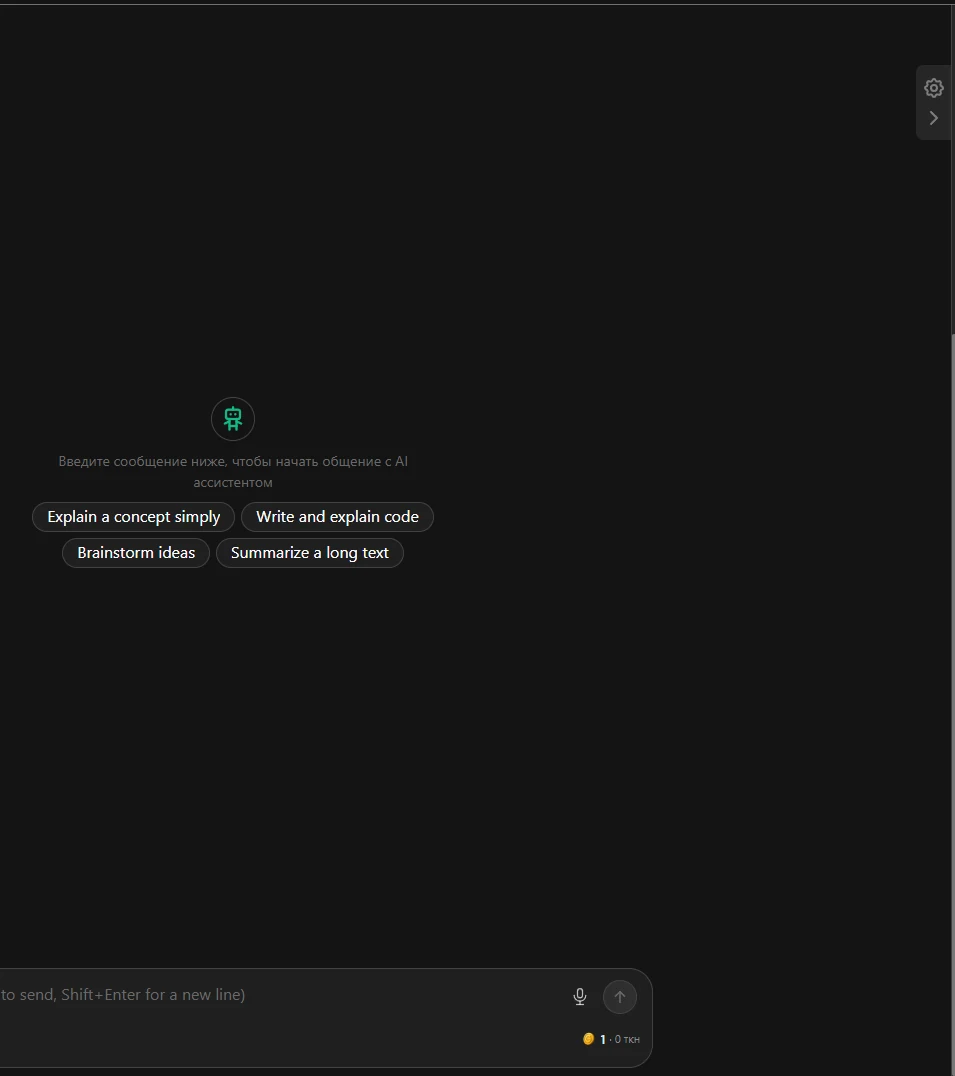
On the English version these stay in Russian: the "Готовые промпты" (ready-made prompts) and "Системный промпт" (system prompt) headings, the "Рассуждение" and "Инструменты" toggles, the names and categories of roles, the welcome line, and the "Повторить загрузку доступности моделей" button that reloads the model list. Everything else — the model panel, the input field, the "Additional" block — is in English.
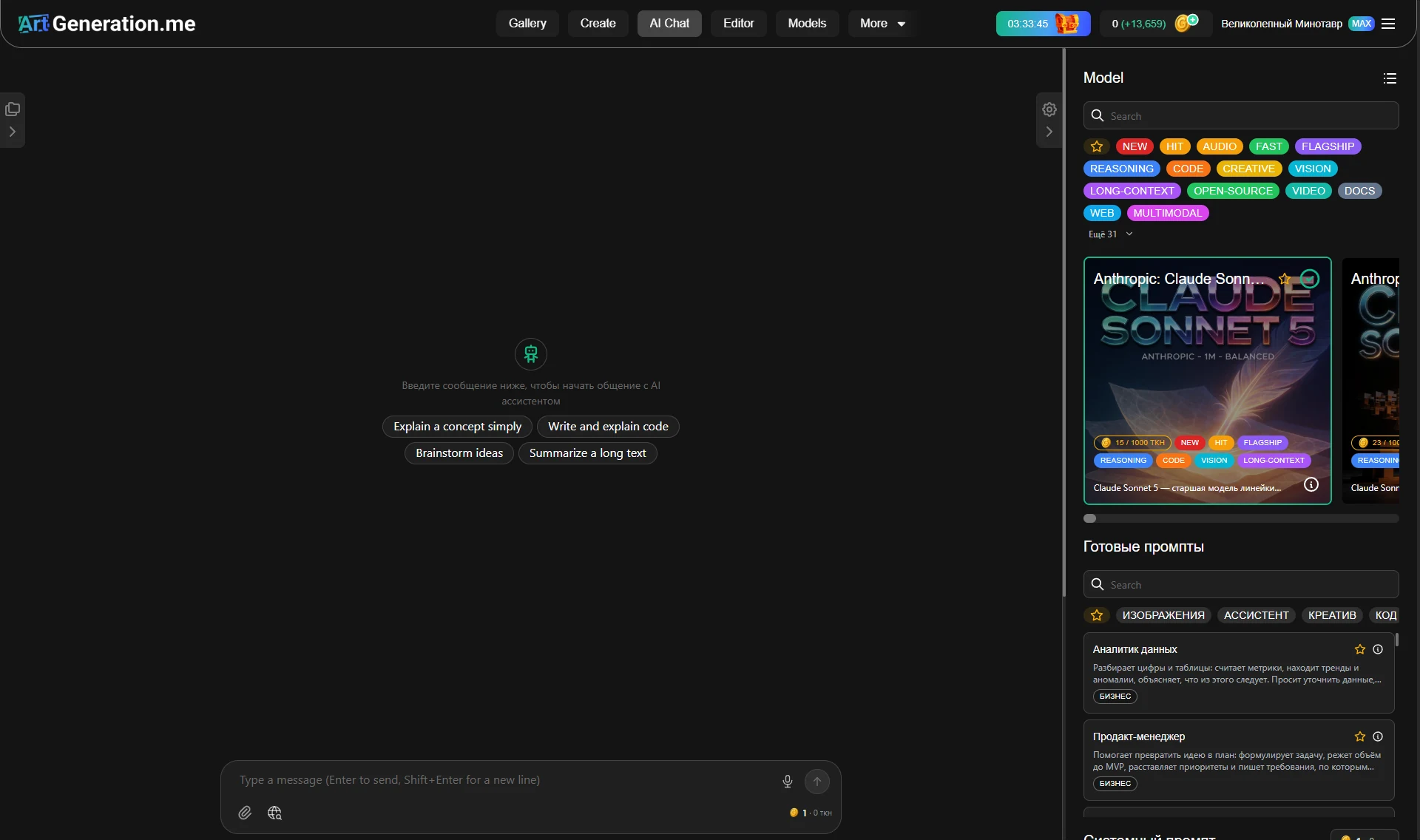
Go by the icons, by the position of a control and by this guide.
Where to go next
- Send your own picture to the chat with one button — Generator.
- Understand what makes up the price of an answer — Coins and limits.
- Pick a model by description and tags — Model catalogs.
