🌟 Join us on Discord! Chat, share, and get inspired — become part of the ArtGeneration.co community
Model catalogs
The catalog answers "which model to take for this task" — and, along the way, "why can't I see the model my friend has". Every model here has a description, a price, example works and its neighbours in the line, all visible before you spend any coins.
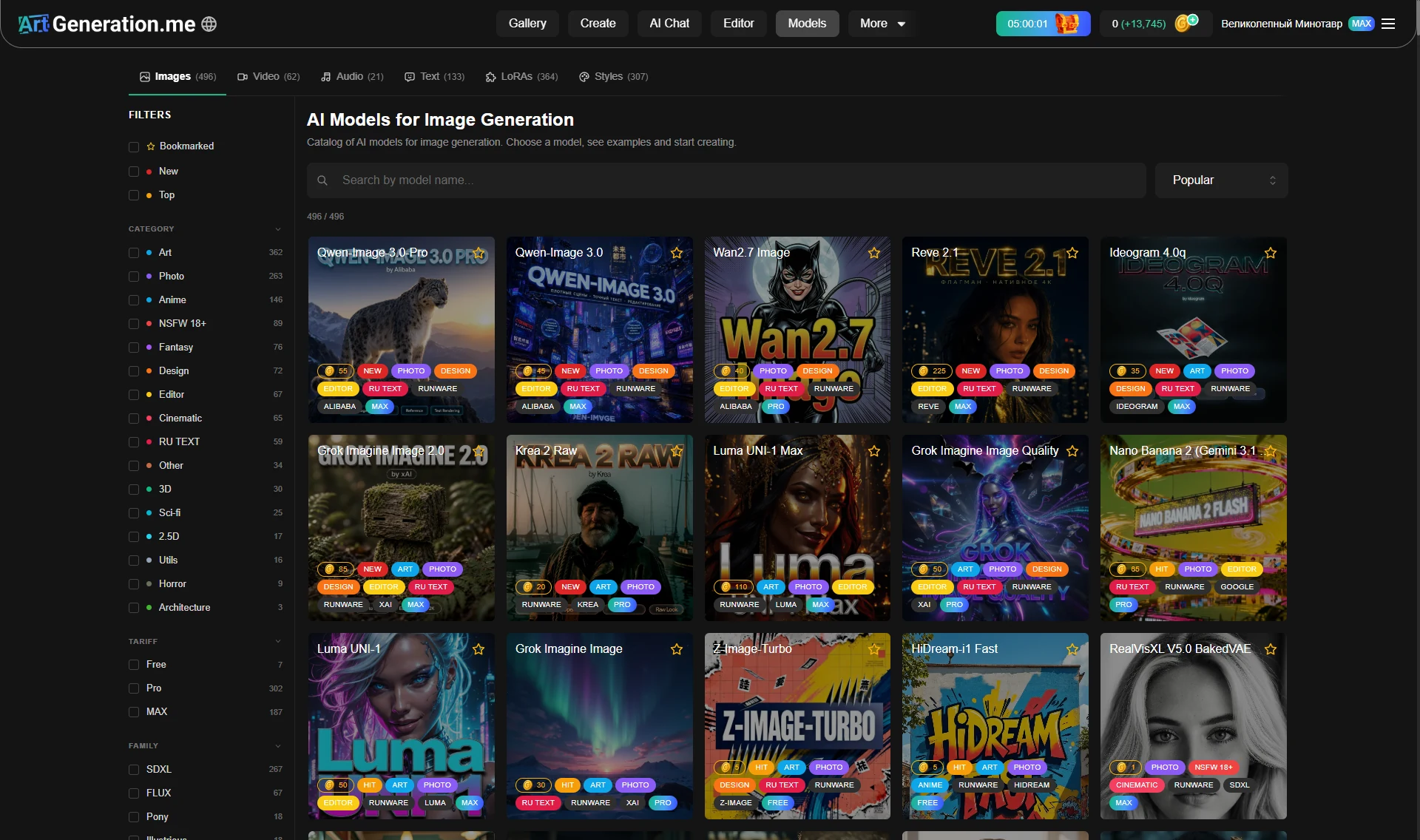
The tabs at the top: Images · Video · Audio · Text · LoRAs · Styles, each with a number in brackets.
The catalog shows models with your plan in mind. It is not a general price list but what applies to you. A modality can also be in a "Coming soon" state — the tab is there but the catalog is replaced by a placeholder; that is not an error.
Filters: the left column
Above the grid — a search by name ("Search by model name…", and "Search LoRAs…" / "Search styles…" in the LoRA and style catalogs) and the "selected / total" counter.
In the left column, three separate rows come first: "Bookmarked" (with a star), "New" (red tag), "Top" (orange). Below them, collapsible sections: Category, Tariff, Family, Provider.
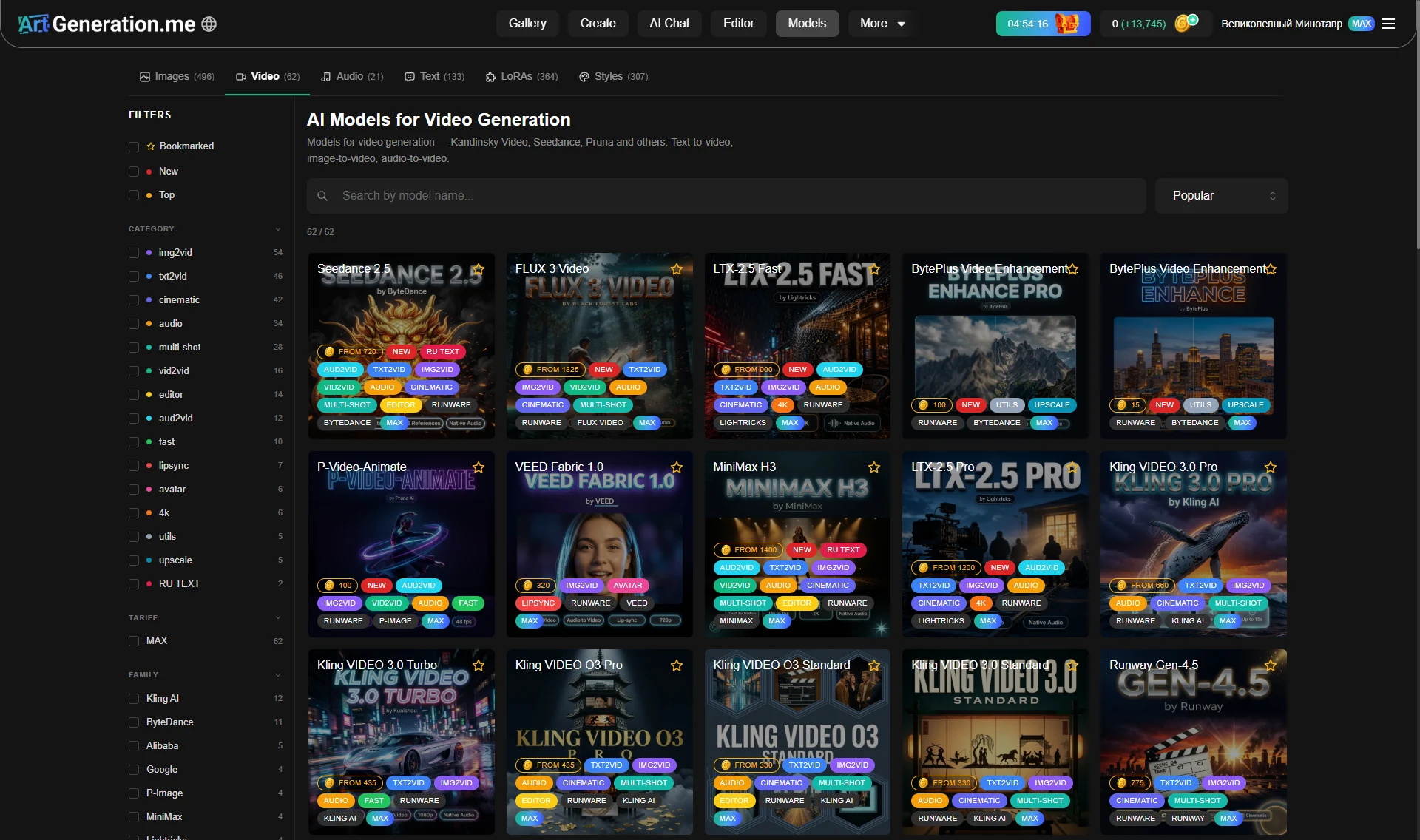
Start with categories, not families. Categories come first on purpose: that is how you search "by task". Family helps only once you already know the name of the line.
The number to the right of each item does not change when you tick other filters — it is always about the full catalog. Only the "selected / total" counter above the grid changes. This is often read as "the filter is broken".
A few more details that save time:
- items with zero are not listed — if something is missing, models like that simply do not exist right now;
- inside a section items are ordered by number of models, not alphabetically;
- the "Reset" link appears only when something is selected;
- all filters work on the already loaded list, so the counter updates instantly.
The "Tariff" filter shows how many models sit on each level. Several levels can be ticked at once, and images also have a separate Free row — free models do exist, and you can see their number.
Sorting
Five options: "Popular", new, cheaper, more expensive, by name.
"Popular" is not a user ranking but the order recommended by the service. This is the most misleading label in the catalog: it is not "what people pick most often" but a selection made by the service.
"Cheaper" plus a category. The price spread is enormous: half of the image models cost a token amount, while the flagships are hundreds of times more. For drafts and for tuning a prompt, a cheap model works just as well.
The model card
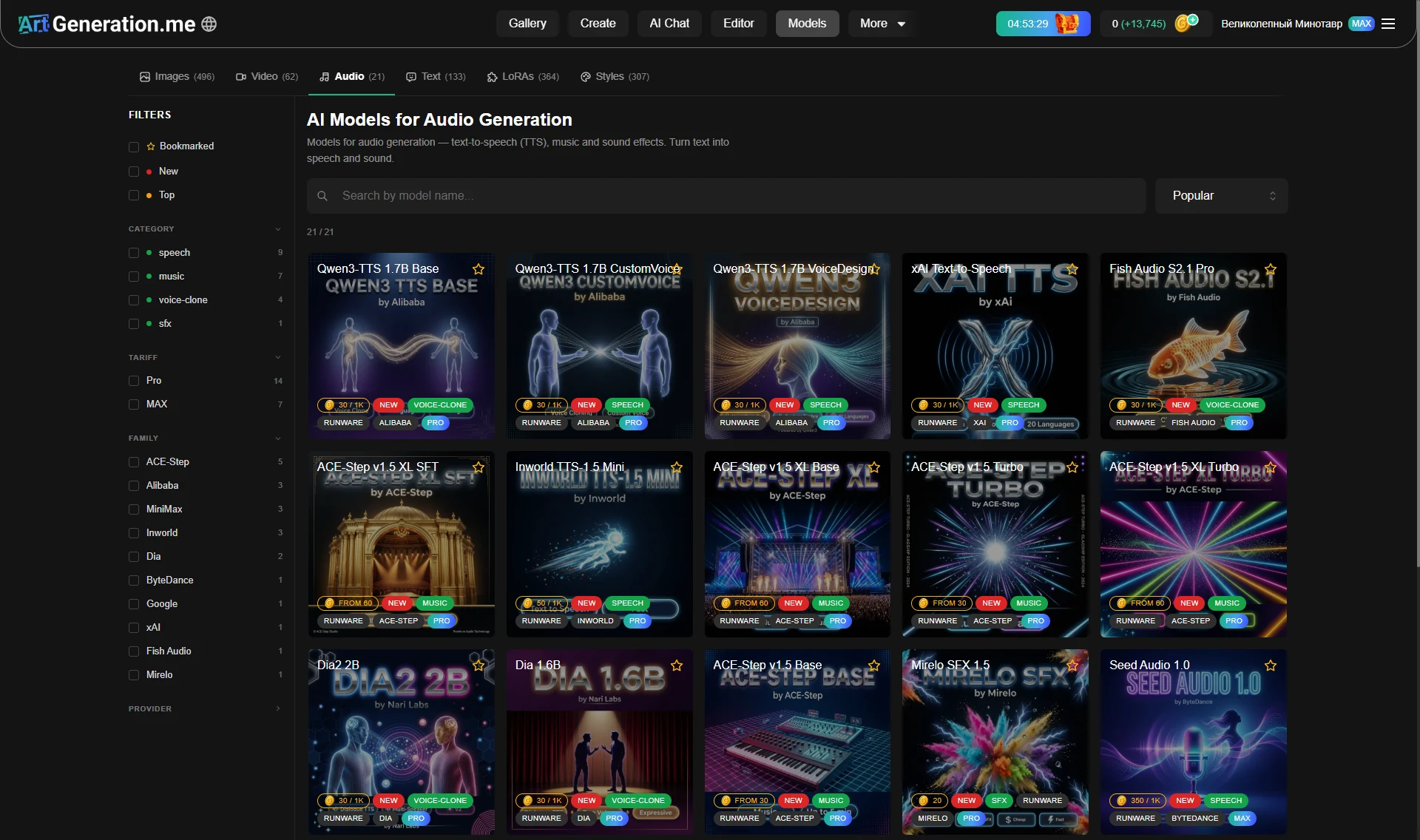
The card's cover is a real work made on that model. The whole card leads to the model page, and the star in the corner is a bookmark: clicking it does not open the page.
The same number on cards means different things:
- images — the price per picture;
- video — "from N": the minimum cost of a clip, not the price per second;
- audio — either "from N" for a minimal track, or "N / 1K" for models that count by characters;
- text — "N / 1000 tokens".
Look not at the number itself but at the caption next to it: "from", "/ 1K" and "/ 1000 tokens" change the meaning of the price completely.
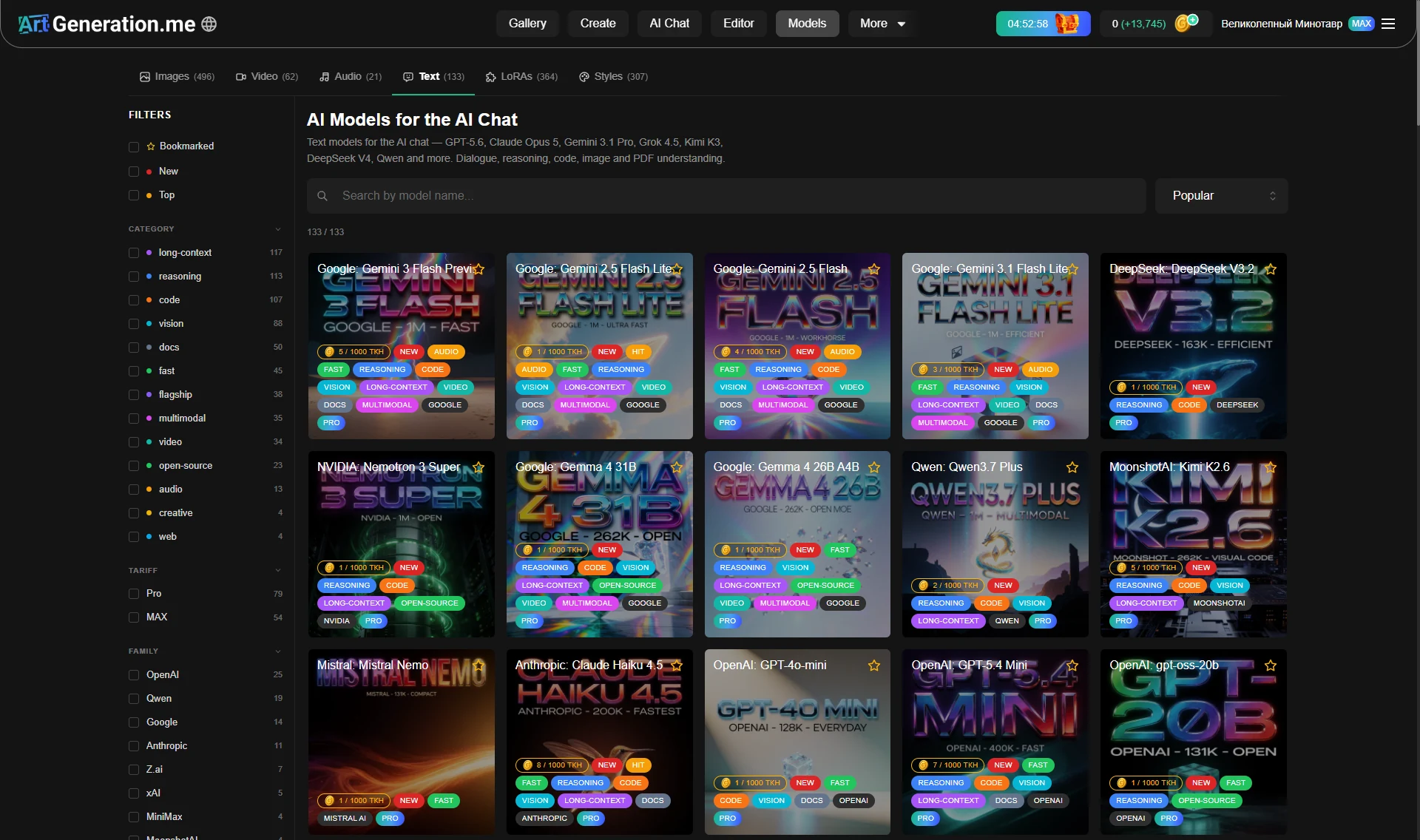
What NEW and HIT mean
- NEW — the model appeared recently; the tag drops off by itself after about a month. It really does mean "new", not "we feel like showing this".
- HIT — the model is currently among the most used, with a window of a couple of working days. The set of models carrying it changes on its own.
Hence an honest piece of advice: not sure where to start — take a model tagged HIT. That is not an editorial pick but what everyone else is using right now. A model is occasionally added by hand, so the list is not strictly automatic.
What else a card says
Left to right: the price in coins, the NEW and HIT tags, category tags in their own colours, the provider and the family in neutral grey, and last the plan the model is available from: Free, Light, Pro, MAX or API.
The "from" prefix on a price appears only when the minimum cost differs from the model's base price.
The plan tag and the plan badge are different things
The tag in the row of tags is always there and says which level the model is available from. The separate plan badge next to the name appears only when the model is above your plan — that is the "not yours yet" hint. A guest is shown no badge at all, and that does not mean everything is free.
The model page
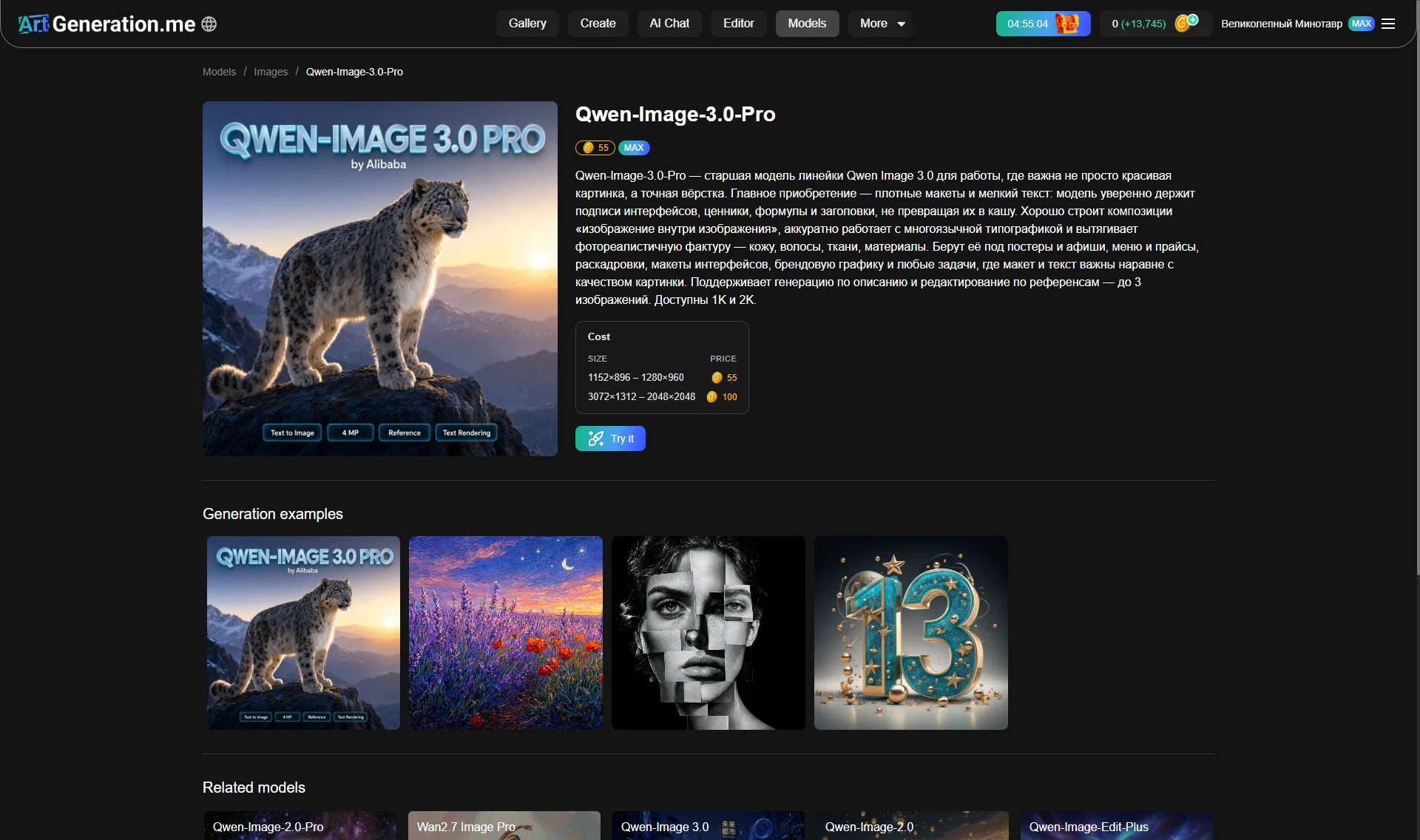
Top to bottom: breadcrumbs, a large preview, the name, tags and price, the description, the "Cost" table with "Size" and "Price" columns, the "Try" button, "Generation examples" and "Similar models". Some models also get a second table, by working mode.
"Try" takes you straight to the right place — the generator with that model, or the chat if the model is a text one. No need to pick it again.
A model's description is stripped of markup: if it looks like one solid block with no paragraphs or lists, that is intended, not a layout fault.
Generation examples
The examples are real works made on that model, not marketing pictures.
Clicking an example opens the work card right there, without taking you to the gallery. So from a model page you can look at an example's prompt and settings and take them for yourself — see Gallery.
Two rows are shown; the "Show all" button appears only if there are more examples than fit, and it opens the feed filtered by that model. The number of columns adapts to the screen width, so on a phone fewer examples fit and the button shows up sooner. If there are none at all, there is no block — that is not a loading error.
Similar models
Picked automatically: the strongest factor is the same family, then a shared word in the name, then shared categories. No more than eight are shown.
A video model can appear among the "similar" ones for an image model — and that is not a fault. It is the easiest way to discover that your favourite image line has a video relative. There is no separate switch for that anywhere.
Liked the result of a particular model — scroll its page down to "Similar": there you will find both a cheaper stand-in from the same line and its version for another media type.
Families: what that word in the filters means
A family is a line from one developer: it has a shared character, shared strengths and, as a rule, shared LoRAs.
Remember the family, not just the model name. Neighbours in a line behave similarly, and the same LoRAs will fit them.
Two patterns worth knowing:
- the catalog is lopsided: the largest family holds more than half of all image models, while many others have one or two. That is why the "Family" filter helps when you already know the line;
- price is strongly tied to the family: large open lines are the cheapest, branded models from big companies are the most expensive, with a gap of hundreds of times. It is the only clear pattern in the pricing.
The "Provider" filter gives almost nothing for images right now — there is a single provider. Not by accident is that section collapsed by default.
Why one model has a pile of settings and another none
The "Additional" block in the generator is far from universal: roughly one image model in seven has it, four out of five video models do, and audio and text models all do.
This is the direct answer to "why is 'Additional' empty on my image model": that is how it is for most of them. In video and audio, on the other hand, there is always something there. More about settings — Generator.
The LoRA catalog
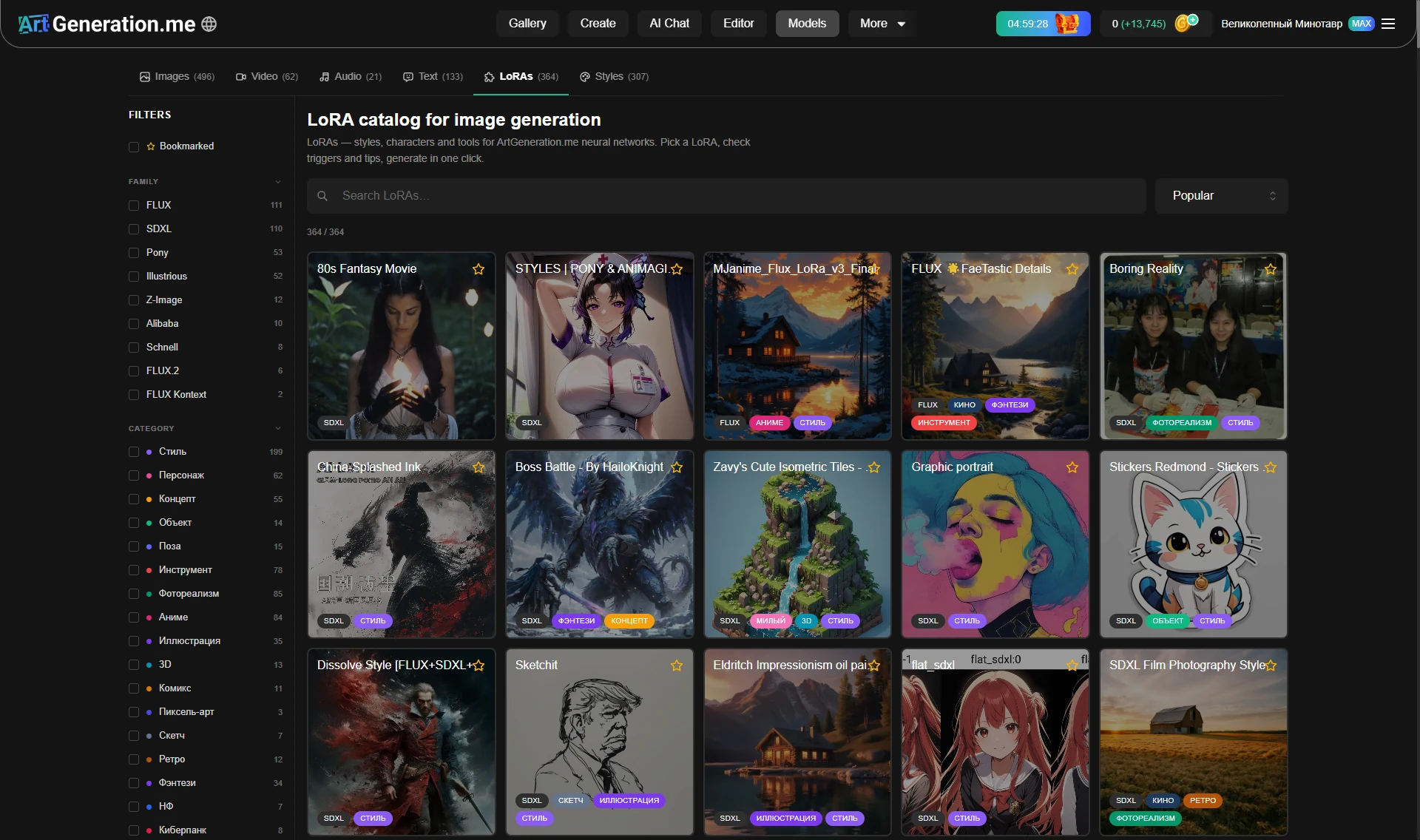
A LoRA is an add-on to a model, not a model of its own: it mixes in a particular style, character or technique.
A LoRA's category answers the question "what does it do": style, character, concept, object, pose, tool, photorealism, anime, illustration. More than half of all LoRAs are styles, so if you are after "make it look good", that is where to go; "a specific character" is a different and much smaller category.
The LoRA catalog and the LoRA panel in the generator have different filters — they are two different places. Here in the catalog you can filter by family as well as by category. In the generator there is only one attribute — category — and several selected ones combine with "AND".
Hence the trick: pick your model's family in the catalog and you will see only the LoRAs that fit it. There is no such filter in the generator; looking for it there is pointless.
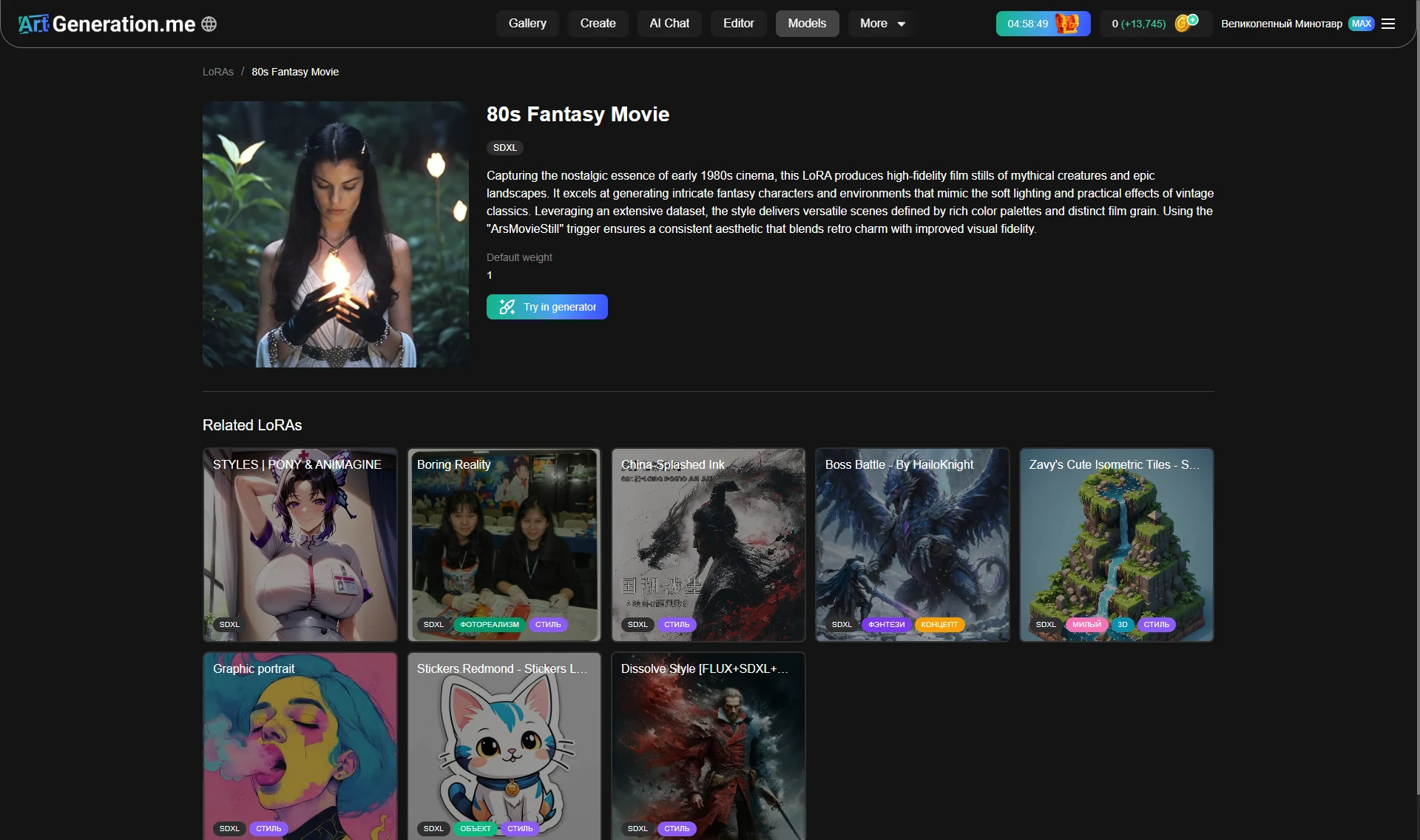
The LoRA page has things its card inside the generator does not:
- "Trigger" — the activator word with a copy button;
- "Default weight" — the strength recommended by the author. Don't guess, start from it;
- "Try in the generator" and a "Similar LoRAs" block.
Not every LoRA has a "Trigger" block. If no activator word is set, there simply is no block — then look at the description, it is often mentioned there as plain text.
And the main thing: activator words are appended to the prompt automatically. The trigger on the page is a reference — "this is what will be added to your prompt" — not a task to type it yourself.
"Try in the generator" substitutes both the model and the LoRA. The button opens the generator with a suitable model from the same family and selects that LoRA straight away, expanding the LoRA section. Two clicks instead of "pick a model → find the LoRA in the list → switch it on".
The sign of success is the LoRA section opening by itself. If it didn't, the LoRA is not compatible with the substituted model and the generator opened without it.
Which models have LoRAs and which don't
About four out of five image models support LoRAs, but they are spread very unevenly:
- open "community" lines have LoRAs for practically every model — hundreds of them;
- branded models from big companies have none at all.
A ready rule for choosing: need a specific character, a drawing style or a rare technique — take a model from a line where LoRAs live. Need "just a good result from a description" — branded models do fine without them.
The same family does not yet mean compatibility. Within one line name there are models of different technical generations, and a LoRA from one will not fit another. Checking is simple: pick the model — the LoRA section either has a list or is empty.
The style catalog
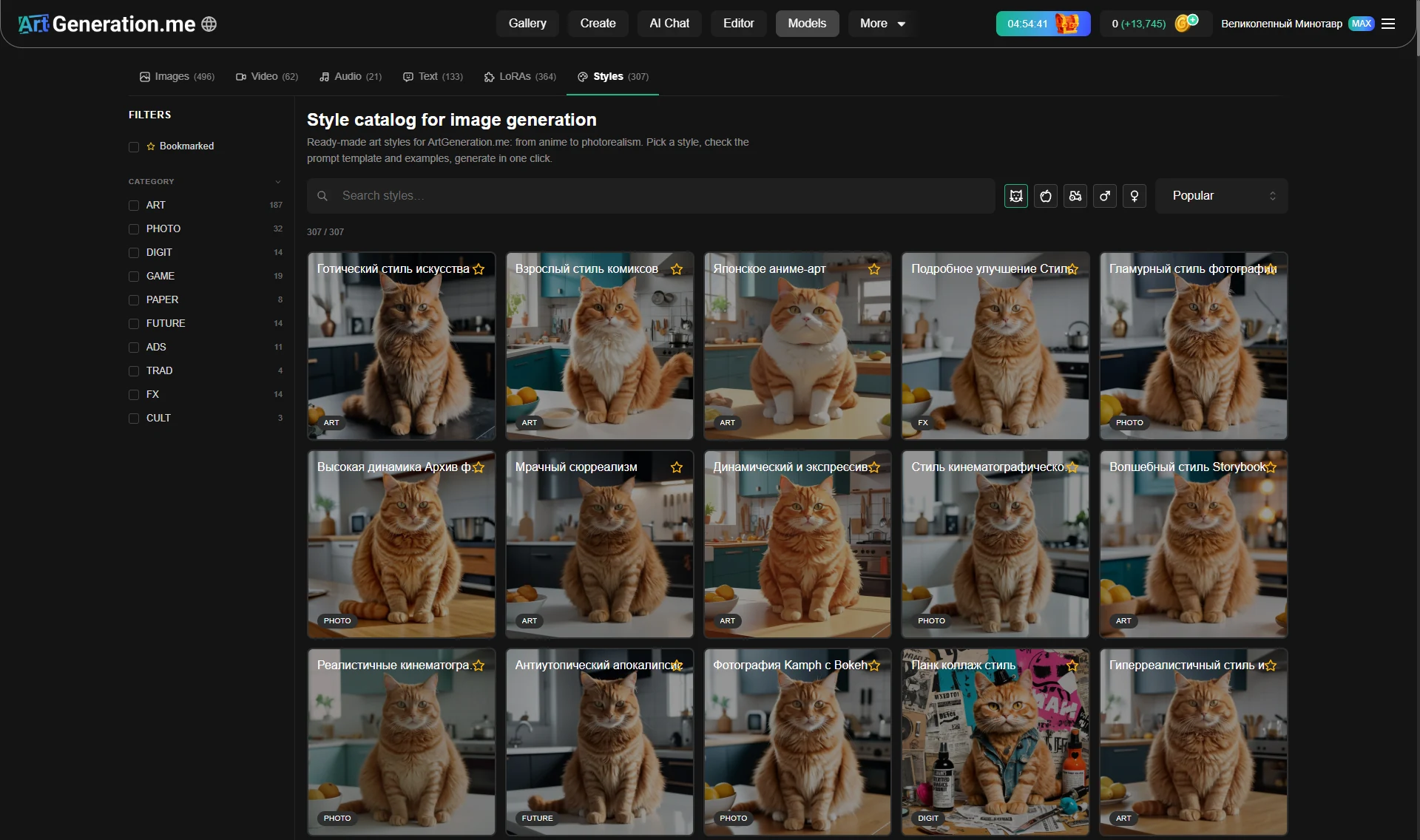
A style is a ready-made prompt frame your own text is inserted into. The style catalog has its own category filter (ART, PHOTO, DIGIT, GAME, PAPER, FUTURE, ADS, TRAD, FX, CULT), a "Bookmarked" row, search, sorting and a counter — just like the model catalog.
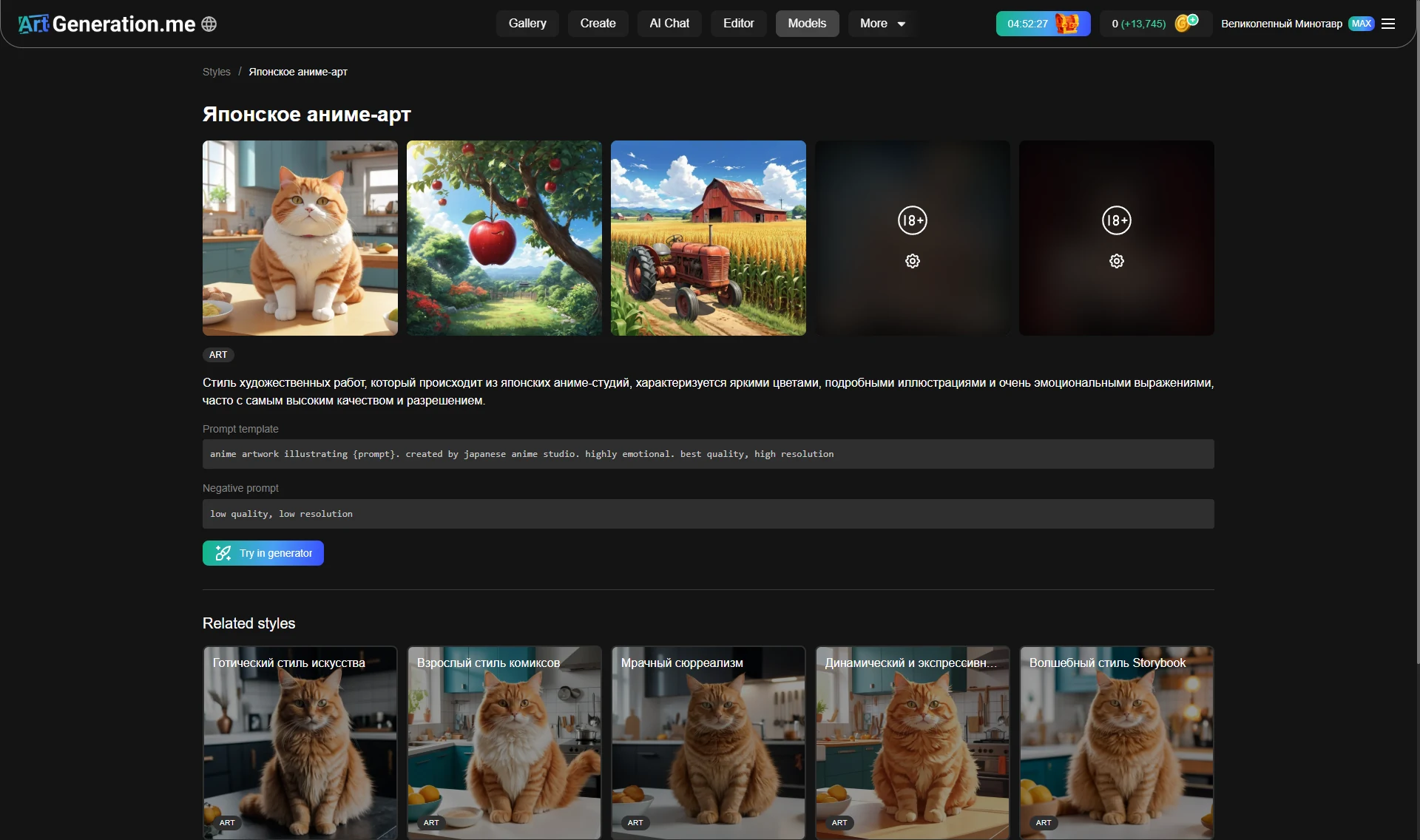
A style's page carries a "Prompt template" and a "Negative prompt". The
word "template" is literal here: the text holds a {prompt} marker and your
request goes inside it — some wording comes before, some after. Worth reading
before you write your own text: you can see what the style has already said
for you.
Like LoRAs, a style has a "Try in the generator" button, and below it a "Similar styles" block. Some styles are available on paid plans only; what your plan includes is listed in the plans window.
Why one model has few styles and another many. Styles are picked by a ladder, and the first non-empty level wins: first the styles tied to the model itself; if there are none — the styles of its family; then those of its provider; and only if all of that is empty — the general ones.
Hence the key consequence: if a model has its own styles, the general ones are no longer shown to it. A short list is not poverty but a precise selection for that model. And conversely, identical long lists across different models are the general styles inherited by default.
The practical upshot: don't hunt for "the right style" by cycling through models. Pick the model first and then look at what is offered for it — the list is already filtered.
Bookmarks
The star exists for models, LoRAs and styles. Bookmarks are stored in your account, not in the browser, so they are available from any device — and they work only for signed-in users.
These are the very same bookmarks that the "bookmarked only" switch in the generator turns on. Star a model in the catalog and it will rise in the list there too.
Why you don't see every model
Everyone's catalog is their own, and there are exactly two reasons:
- your plan — models above your level are in the list but carry a plan badge; what opens on which level is listed in the plans window;
- hidden models — some models are taken out of the catalog by the team entirely, and then no filter will show them.
That is also the answer to "where did the model go" and "my friend has it and I don't": either it is on another level, or it was pulled from the shelf. Search has nothing to do with it — filters work on the already loaded list.
Where to go next
- Picked a model — Generator: its settings are explained there too.
- Looking for unusual features: upscaling, outpainting, avatars, voice cloning — Special model features.
